Showing posts with label api. Show all posts

Thursday, October 09, 2014

Command Center: Bob Discovers the JangoMail API

By: JangoMail Development
Bob's business is growing. Bob's sales staff needs to use email to make more connections with leads, and to promote more sales to existing customers. Bob's sales staff, however, isn't so great at learning new things. Bob already has his own software to run his business, and his sales staff doesn't like going outside of it to use other tools.

Bob needs his sales staff to use JangoMail's tools, but he wants them to do so directly from his own sales software. After all, his IT and development staff have worked hard to make his software work very well for his purposes.

That's why Bob uses the JangoMail API. API stands for Application Programming Interface. The JangoMail API lets Bob's developer connect his software directly to JangoMail.

Now Bob's sales staff can create messages, build contact lists, and send campaigns directly from Bob's own software. Bob's sales software, with JangoMail's API, brings more power, success, and money to Bob's organization.

But wait, there's more! The JangoMail API gives Bob's software access to reporting, transactional and campaign sending, contact management, account management, and many more features. Almost everything you can do within JangoMail can be done through the JangoMail API. Check for bounces. Count your opens. Do it all!

If you act now, we'll also include the ability to make requests through SOAP, HTTP GET, or HTTP POST. We'll even let you pull the data as string, .NET dataset, or XML.

All of this, AND MORE, for the great low, low price of nothing in addition to your normal subscription costs. That's right, access to the API is free for JangoMail customers. Yes, even free trial customers.

Want to know more about how the JangoMail API like Bob does? Click here to read more. You'll be cool if you do it, just like Bob.


Friday, May 02, 2014

Meet the Team - Erick Pece

What do salt and vinegar chips, mountain biking, and 'refresh your screen' all have in common?  They are synonymous with Erick Pece, JangoMail's Director of Technical Support!


1.  What is your position at JangoMail?
Meet Erick Pece, JangoMail's
Director of Technical Support

2.  How long have you worked for JangoMail?
Close to three years

3.  How do you use JangoMail personally?
I use JangoMail both for internal support team use to send notifications, scheduling reminders, etc...I also use JangoMail for a few non-profit projects I'm involved in.

4.  What do you like best about working for JangoMail?
The team environment and flexibility to provide customers with the best support options - we're not reading from scripts! 


5.  What feature do you like most?
I have a background in software development, so my first choice would be our API, since it allows people to integrate with our system directly inside their own.  After that, the ability to connect directly to a web database is my next choice!

6.  What is your educational background or what experience led you here?
I have a Bachelor's in Computer Science and Information Management, and have had experience as a systems and network administrator at several other companies.  The team-oriented environment led me to JangoMail.

7.  What is your favorite hobby / pastime?
Mountain biking.

8.  What is your guilty pleasure?
Baked Salt and Vinegar chips. I can't stop myself when they're around!

9.  What is one random fact people don't know about you?
After graduating college in 2008, I haven't lived anywhere for more than 1.5 years until now.  I've been living in the same city for just over 2 years - we're on a roll!

10. Do you have a catchphrase, funny saying, or personal quote?
I often develop internal tools for our support team to provide them with the best information, which in turn allows them to provide customers with that information. Depending on my workload, I'll sometimes get requests to add features to these tools.  In some cases, I'm able to turn around that request in 5-10 minutes, at which point I'll say, "Refresh your screen."  I guess I'd say that's a phrase I've become known for by the support team.

Thursday, March 29, 2012

Calling the JangoMail API in Ruby Using SOAP

If you're integrating in a Ruby environment, then Savon is a great, versatile way to call SOAP web services. In this example, we use savon to build a soap client for the JangoMail API, then call Groups_GetList_String. To test it with your own account, just insert your own JangoMail/JangoSMTP credentials. Download the source code for this example to start your own integration!

# make sure to include savon for building soap requests
# see http://savonrb.com/ to download
require 'savon'

# first, build the soap client from the wsdl
client = Savon::Client.new 
    "http://api.jangomail.com/api.asmx?wsdl"

# specify the xml for the request, inserting your credentials
response = client.request 
    "http://api.jangomail.com/Groups_GetList_String" do |soap|
  soap.xml = """<?xml version=\"1.0\" encoding=\"utf-8\"?>
    <soap12:Envelope xmlns:xsi=\"http://www.w3.org/2001/XMLSch...
    <soap12:Body>
    <Groups_GetList_String xmlns=\"http://api.jangomail.com/\">
    <Username>Your JangoMail/JangoSMTP Username</Username>
    <Password>Your JangoMail/JangoSMTP Password</Password>
    <RowDelimiter> </RowDelimiter>
    <ColDelimiter> - </ColDelimiter>
    <TextQualifier></TextQualifier>
    </Groups_GetList_String></soap12:Body></soap12:Envelope>"""
end

Monday, March 19, 2012

Calling the JangoMail Web Service in Python

Python is a language that seems to make so many mundane programming tasks easy. Unfortunately, some python libraries are perhaps less fully developed than the libraries of other languages. This is certainly the case of the python soap libraries SOAPpy and SUDS. In my experience, both libraries are painfully buggy. In python, I think it's easier just to use httplib and build the xml manually. Luckily, python's other conveniences make that pretty easy!

In this example, we build an xml template for calling Groups_GetList_String. To test it with your own account, just insert your own JangoMail/JangoSMTP credentials. Download the source code for this example to start your own integration!


import sys
import httplib

# setup the sml template xml for a call to Groups_GetList_String
SM_TEMPLATE = """<?xml version="1.0" encoding="utf-8"?>
<soap12:Envelope 
    xmlns:xsi="http://www.w3.org/2001/XMLSchema-instance" 
    xmlns:xsd="http://www.w3.org/2001/XMLSchema" 
    xmlns:soap12="http://www.w3.org/2003/05/soap-envelope">
  <soap12:Body>
    <Groups_GetList_String xmlns="http://api.jangomail.com/">
      <Username>%s</Username>
      <Password>%s</Password>
      <RowDelimiter>%s</RowDelimiter>
      <ColDelimiter>%s</ColDelimiter>
      <TextQualifier>%s</TextQualifier>
    </Groups_GetList_String>
  </soap12:Body>
</soap12:Envelope>
"""

# fill in the parameters for our call
SoapMessage = SM_TEMPLATE%("Your JangoMail/JangoSMTP Username", 
              "Your Password", "\n", " - ", "")

# examine the soap message that we have constructed
print SoapMessage

# insert the proper values into the header
webservice = httplib.HTTP("api.jangomail.com")
webservice.putrequest("POST", "/api.asmx")
webservice.putheader("Host", "api.jangomail.com")
webservice.putheader("User-Agent", "Python post")
webservice.putheader("Content-type", 
    "application/soap+xml; charset=\"UTF-8\"")
webservice.putheader("Content-length", "%d" % len(SoapMessage))
webservice.putheader("SOAPAction", 
    "http://api.jangomail.com/Groups_GetList_String")
webservice.endheaders()
webservice.send(SoapMessage)

# get the response and print it
statuscode, statusmessage, header = webservice.getreply()
print "Response: ", statuscode, statusmessage
print "headers: ", header
res = webservice.getfile().read()
print res

Monday, March 05, 2012

Consuming the JangoMail API in ASP.Net

It's easy to start integrating the JangoMail API into your company's .Net software. Start by adding a service reference to your project. Right click on the project in the solution explorer, then click "Add a Service Reference". Under Address, enter http://api.jangomail.com/api.asmx?WSDL and click "Go". Then change the namespace to JangoMail and click "OK". This will add the files necessary to reference the JangoMail web service within your application or website. Then you can call all the JangoMail/JangoSMTP API methods from within your software.

In this two line example, a JangoMailSoapClient object is created, then used to invoke the method that gets a list of the email lists on your account. Download the source code for this example then start your own integration!

// first create the JangoMail soap client object
JangoMail.JangoMailSoapClient j = 
    new JangoMail.JangoMailSoapClient("JangoMailSoap");

// then call the getlist method and display the results
Result.InnerHtml = 
    j.Groups_GetList_String("Your JangoMail/JangoSMTP Username", 
                            "Your JangoMail/JangoSMTP Password", 
                            "<br/>", " - ", "");

Wednesday, January 18, 2012

API Change: Timestamps returned from the Reports methods now in include time zone

In our latest update to the API, we decided to make a change in the way timestamps are returned. Previously, a call to Reports_Transactional_GetOpens_String for instance might return data like this:

example_address@nowhere.com
75.149.211.42
Mozilla/5.0 (Macintosh; U; Intel Mac OS X 10.6; en-US;)
09/14/2011 4:26:00PM


That's OK... but what timezone is that? The time being returned is ambiguous. Is that in the user's local time? JangoMail time? Furthermore, the timestamp is formatted as per the custom in the US - not very good for our international customers.

Therefore, we've decided to fix the issues listed above. From now on you should now get back timestamps that include a timezone and are formatted in a manner useful for an international audience.

Using the example above, you'll now see this:

example_address@nowhere.com
75.149.211.42
Mozilla/5.0 (Macintosh; U; Intel Mac OS X 10.6; en-US;)
2011-09-14T19:26:00.00+00:00


That's much better! It's clear that this timestamp is in UTC, and it's in a much more internationally friendly Year-Month-Day format.

Wednesday, February 02, 2011

New SMTP Relay option to preserve custom headers

We have launched a new feature that will give you the option to preserve custom headers when using the JangoMail SMTP relay at relay.jangosmtp.net. To enable this option, go to Settings --> SMTP Relay, and check the Preserve Headers box.


Enabling this option will preserve any custom headers that are a part of your original mail message. The SMTP relay previously would strip off custom headers before teh email was delivered to the recipient. With this feature, if your email message includes custom headers or headers added on by an email client like:

X-MSMail-Priority
User-Agent

They will be included in the final email sent to the recipient. Additionally, if you have custom headers that help identify an email message in your internal system, such as:

X-CustomEmailID

those will also be preserved.

We will be enabling an option in a future launch such that you can set a particular custom header's value to show in reports, allowing you to tie each individual sent email, open, and click back to your internal system's own identification mechanism.

Tuesday, January 04, 2011

New API method to retrieve SMTP log for transactional email

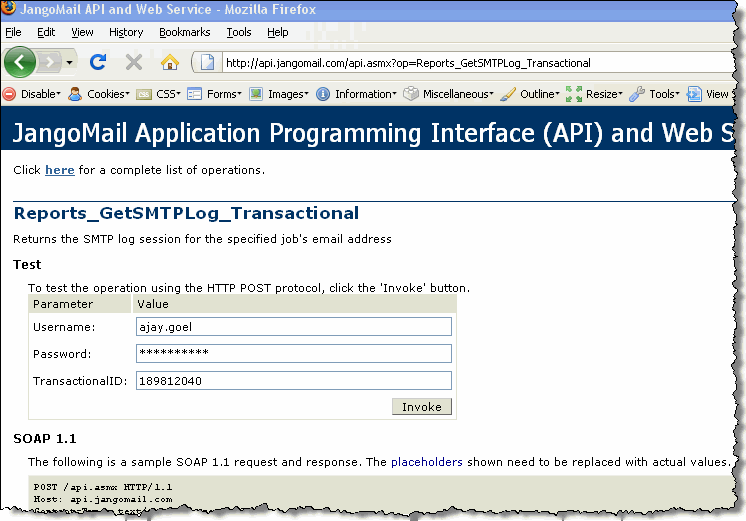
We've launched a new API method to retrieve the SMTP log for a transactional email message. The method, Reports_GetSMTPLog_Transactional, is described in detail below.


The method takes, as input parameters, the account username, password, and the numeric Transactional ID corresponding to the transactional email for which the SMTP Log should be retrieved. The method was designed around the Transactional ID rather than a recipient email address, since the Transactional ID will always be unique per individual transactional email message. With email addresses, there can be multiple transactional emails to the same address within an account.

Thet Transactional ID can be retrieved from the User Interface in Reporting, or via other API methods, like Reports_Transactional_GetRecipients_XML.

The output of Reports_GetSMTPLog_Transactional includes the SMTP log as an XML string:


Note: This new method is in addition to our existing method that retrieves SMTP logs for broadcast email messages:


JangoMail is the only email service that offers access to SMTP logs for both broadcast email campaigns and transactional email, and is now also the only service to do so through an API. The full API, including documentation and test forms, is at http://api.jangomail.com/
  • Reports_GetSMTPLog
    Returns the SMTP log session for the specified broadcast campaign's email address


  • Reports_GetSMTPLog_Transactional
    Returns the SMTP log session for the specified transactional email message
  • Tuesday, November 23, 2010

    Technical Notes: Using the JangoMail API with PHP

    Cool Life Systems, a provider of custom business solutions, uses the JangoMail API with PHP to send emails. They have graciously allowed us to share a sample of the PHP code they use to integrate their system with JangoMail's email solution. We hope this is helpful to anyone looking to use the JangoMail API with PHP. Thanks, Cool Life Systems!

    We have two samples available that allow a user to input all of the parameters required by the API in order to send out an email message.

    PHP Sample #1: Send a Mass Email - allows a user to send a mass email to a specified group that is in their account using the SendMassEmail method at http://api.jangomail.com/api.asmx?op=SendMassEmail

    <?php
                        
    $client = new SoapClient('https://api.jangomail.com/api.asmx?WSDL');

    $parameters = array
        (
            'Username'          => (string) 'username',
            'Password'          => (string) 'password',
            'FromEmail'         => (string)
    'fromaddress@domain.com',
            'FromName'          => (string) 'name',
            'ToGroups'          => (string) 'group name',
            'ToGroupFilter'     => (string) '',
            'ToOther'           => (string) '',
            'ToWebDatabase'     => (string) '',
            'Subject'           => (string) 'Mass Subject',
            'MessagePlain'      => (string) 'Mass Plain (plain text)',
            'MessageHTML'       => (string) 'Mass HTML (html) <br><a href="http://
    www.google.com">Link #1</a>',
            'Options'           => (string) 'OpenTrack=True,ClickTrack=True'
        );
       
    try
    {
        $response = $client->SendMassEmail($parameters);
        echo "Message(s) sent!";
    }
    catch(SoapFault $e)
    {
        echo $client->__getLastRequest();
    }

    ?>

    PHP Sample #2: Send a Transactional Email - allows a user to send a transactional email to a recipient that they specify using the SendTransactionalEmail method at http://api.jangomail.com/api.asmx?op=SendTransactionalEmail

    <?php
                   
    $client = new SoapClient('https://api.jangomail.com/api.asmx?WSDL');

    $parameters = array
        (
            'Username'          => (string) 'username',
            'Password'          => (string) 'password',
            'FromEmail'         => (string) 'fromaddress@domain.com',
            'FromName'          => (string) 'name',
            'ToEmailAddress'    => (string) 'recipient@domain.com',
            'Subject'           => (string) 'Transactional Subject',
            'MessagePlain'      => (string) 'Transactional Plain (plain text)',
            'MessageHTML'       => (string) '<b>Transactional HTML</b> (html)',
            'Options'           => (string) 'OpenTrack=True,ClickTrack=True'
        );
       
    try
    {
        $response = $client->SendTransactionalEmail($parameters);
        echo "Message(s) sent!";
    }
    catch(SoapFault $e)
    {
        echo $client->__getLastRequest();
    }

    ?>

    Monday, May 03, 2010

    How to use the API method SendMassEmail to connect to a website database

    The SendMassEmail method of the JangoMail Email Marketing API is a versatile method that can launch an email campaign to recipients in a variety of ways. There are various "To" input parameters, each with its own use depending on where your email list data is stored.

    The full specification of the method is located here. The "To" input parameters include:
    • ToGroups - send to an entire Email List - specify the name of an Email List (also called an Email Group) to send to. Specify multiple Email Lists separated by a comma
    • ToGroupFilter - sent to a segment of an Email List - specify the name of an Email List followed by a colon followed by a valid SQL filter (just the WHERE clause). For example, if you have an Email List called Contact List with the fields FirstName, LastName, and Company, then an acceptable input value would be "Contact List: Company = 'ABC Corporation'". An additional acceptable input value would be "Contact List: Company = 'ABC Corporation' OR FirstName = 'John'".
    • ToOther - specify a string of email addresses in any unstructured format. JangoMail will parse the data and pull out the email addresses and send to them. Optionally, pass structured data on-the-fly with field name and field value information, in order to send personalized emails to a dataset on the fly.
    • ToWebDatabase - pass in a SQL query (usually a SELECT statement) that will be executed against your web site database, in real-time, to pull down a list of email list data, to send a personalized email campaign.
    This article will focus on how to use the ToWebDatabase input parameter.

    In order to be able to use this feature, your JangoMail account first needs to know how to connect to your web database platform. There are two steps to this:
    1. You must create a Web Database Connection Profile. Create a Web Database Connection Profile under Lists --> Databases --> Add New Item --> Internet Web Database. If you're not familiar with creating a connection profile, see the detailed PDF guide.
    2. Then you must set this Profile as the Master Profile, so that the API knows that this connection profile is the one to use when you use ToWebDatabase. Set the Web Database Connection Profile as your Master Profile under Settings --> Integrating JangoMail with Other Systems --> Set Master Profile for Web DB. See screenshot below:


    Set Master Connection Profile here.

    If you attempt to call SendMassEmail and specify a value for ToWebDatabase without first having set a Master Profile, you will get this web service Exception:

    MissingWebDatabaseSettings: There is no Master Web Database Connection Profile set for your account. This must be set prior to specifying a SQL query for the ToWebDatabase parameter.
    Once you have set the Master Profile, you're ready to make the API call and pass in a SQL query in the ToWebDatabase input parameter. If you wanted to send to all email addresses that had been added to your database in the last 24 hours, for example, your SQL query might be:

    select * from Accounts where AccountCreateDate >= dateadd(hh, -24, getdate())

    And the full API call would look like the screenshot below: