Showing posts with label reports. Show all posts

Wednesday, July 09, 2014

Email Blast Software | JangoMail Demo & Review Video


Gregg Stebben from Stealth Radio Network provides detailed commentary about the robust and automated email blast software features of JangoMail.


Special thanks to Jonathan Dwyer from Endicow for creating this video, and JangoMail expert, Stephanie Yount, who performed the demo.


Featured Email Blast Software…


JangoMail is email blast software to send HTML email newsletters by using pre-existing templates or by writing your own code.

Presented By…

Gregg Stebben is the Founder & CEO for Stealth Radio Network.

Stealth Radio Network is a radio news bureau that works with the nation’s top magazines, book publishers, non-profits, global consumer brands, and retailers.


_____________________________________________________________________________________________________________________


Video Script:


So my name is Greg Stebben, and I have an interesting set of things I do in a given week. I'm an editor of a national magazine and also the host of their nationally syndicated radio show. And I also own a small boutique PR firm, and all we do is book radio interviews for our clients on radio. And if you have any experience in radio at all, it's kind of like working in the stock market, things move really fast and you've got to be on top of it.

And having a tool like JangoMail makes it essential. Because it's very, very flexible and enables us to do things that are really tightly targeted and very tuned for our audience. What we do is really all about relationships and JangoMail has enabled us to really manage relationships, when necessary, one at the time or in small groups. And that has been an essential part of the tool for us.

I've been a customer of JangoMail for probably 10 or 12 years. And one of the things that has really impressed me is that they keep redoing it, making it better, refining it, coming out with new versions. And in the last couple of years the number of revisions they've made on the user interfaces just, they've done some unbelievable stuff.

The four main areas that our customers use are the messages, there's not a limit to how many that you can keep track of, so I've got over five pages of stuff that I've done here.

Well this was one of the things that they rolled out a couple years ago that absolutely transformed the user experience of using JangoMail. That little search bar over there is so powerful. You can really drill down and find stuff both very quickly and very easily. And you know when you're handling a lot of different email campaigns, that's absolutely what you need to be able to do. You need to be able to pick things out and find what you're looking for.

And let me say one other thing that's really powerful that they added. This Identifier column there, it took me a while to figure out how useful that was. But if you're an online marketer or PR person, you may have campaigns with the same subject over and over and over again. You may be resending the same messages. When they added the field for that identifier, it enabled you to add a date or something else unique that separated out today's campaign of the same name from yesterday's campaign of the same name.

So Messages is probably the number one place that our customers get their use. Lists is a second area that a lot of our customers use. Whether it is actually creating lists inside of JangoMail, or you can also connect to different local databases. If you have a database running on your computer like an Excel spreadsheet or if you're connecting to a web based database.

Assets, this is where you can keep track of images, PDF files, and you can use them inside your messages. There's no limit to how many you can have in your account. We do give you the option to attach files to your messages, but it is a smoother operation if you actually link to it. So you can host them here in JangoMail and then link to them in your messages.

And then Reports is probably the most trafficked area across the board for all customers, even more than Messages. Because we do have customers that use our API functions, so they never really even go to Messages, but they do come to Reports. We have it broken down into three different sections. We have Broadcast Messages, we have Transactional Messages, and then we have some management reports and tools.

You can keep track of the bounce addresses that occur in your accounts. We'll give you that list. We do the same with unsubscribes. We keep track of any address that unsubscribes.

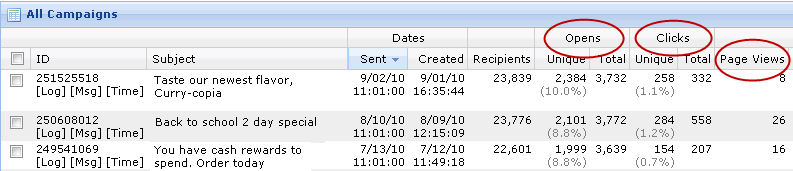
We keep track of the campaign ID number. Every campaign that you send out we'll keep track of the subject line for you, the date and time that it was sent, how many recipients. And then we're going to keep track of the opens if you're using open tracking. And you can actually click on this number. We'll be able to click here and see who opened this message that I had sent out. And it's going to show us that these three people opened my message. And it shows us how many times they opened that message as well.

I want to point out a couple of things that are actually not used as much that we're trying to start really showing our customers a little bit more of. So if we could to Lists in the section here called Sending and Receiving, we have two different types of automated messages. One are Recurring Messages and the other one are Triggers. So for both of these, it's an automated system. You could set up a recurring message. So let's say that you know that your company, every Thursday is going to be closed for five hours. You can set up a reminder.

The other one that we have are Triggers. And you can create an email. Here what you would do is you'd go in, you'd add a new item. And it's going to let you name the trigger. You would have already created the email itself. You'd go select the message and decide what event is going to trigger this email to go out, the message just being open, a link being clicked, a web page you viewed. Then you can set the behavior. When do you want this sent out? If it's happening every time a recipient performs the trigger or only once. It's definitely a feature that's under used that we're trying to help get out there, because we know a lot of our customers do those type of things, but they're being done manually.

And then we have one other automated message that you can set up. And those are called auto responders. And I'd say auto responders are our most used automated system right now. Anytime a recipient is added to a list, if you're using an auto responder you could set up a set of three or four different emails. I know we have several customers that use our auto responders as a set of three different newsletters that they want to go out.

One of the things you're going to get if you become a customer of JangoMail, is you're going to be working with a company that's really focused on the user experience and figuring out how to make systems and workflows work really efficiently and effectively and smoothly and easily.

Friday, March 15, 2013

Collecting Metric Gold Is A Piece Of Cake

Around St. Patrick’s Day, everyone throws around the leprechaun allegories and imagery. While it's tempting to join in, we're going to shy away from that nightmarish green sprite as we look for our email gold amid this festival of green.

Here's how we're mixing it up:
We're reiterating that, with the right tools, it's easy to plan and achieve email marketing success. In fact, you could say it's a piece of cake ... made of metrics and 'rainbows'. (Yeah, we went there.)

So what's the connection between metrics and rainbows?
Consider your rainbow the journey of planning that's involved in any well-thought out, email marketing campaign. You take a considerable amount of time to conceptualize and design your message, build your rock solid list, and finally - with a triumphant 'woot' - you blast it to its intended audience with the highest of hopes.

Then the real work begins.
Here's where that gold at the end of your rainbow comes in. Bottom line, you have to know if you're getting results or need to change course. Quickly. The good news is that JangoMail's email reporting tools are the easy way to find out.

We help you compare email campaigns to see what's working best. In fact, we can show you reports of every open and click, as well as historical and geo tracking down to the level of each and every email newsletter recipient. The best part is that it's all in real-time, so you can react and enhance on the tightest of deadlines.

For even more granular, visual reporting, JangoMail also has a highly advanced integration with Google Analytics. Clicks, specific page views, time on page and points of entry/exit will help you further illuminate your customers' behaviors.


Enter the big payoff
Knowing the results of your past and present email marketing campaigns is worth its weight in gold, in terms of future customization and planning that will lead to higher rates of conversion. The key takeaway here is that it's definitely worth the time to at least explore all the tools available to you.

See? You can have that rainbow cake reward - and the creepy little green man can stay where he belongs. If your guess (like ours) is "under the bed", you can feel free to look first.


Happy St. Patrick's Day, folks! In the spirit of the holiday, here's something from the web:


(Hey, Jennifer Aniston's in this clip (guys), with her 90's hair (ladies) ... so it's worth looking for laughs.)


Wednesday, January 12, 2011

Location metrics have been relocated within Reporting

To improve consistency and avoid confusion in an email campaign's Reporting metrics, Geotracking Location data has been moved to display along with the Raw Data of a Campaign's Details reports. This data had previously been located along the different ways to group data (by Domain, by Sender, by Email Client, etc.), though it did not group by location.

Now, you will find the location data in the raw data report itself.


The additional columns showing Geotracking's Country Code, Region, City, Zip Code, ISP, Domain Name, Latitude, and Longitude are on the right.


More Resources

For more information on this feature set, visit our previous blog posts:


You can also read earlier blog posts about Phase I, Phase II, and Phase III of our Geo Tracking deployment. These previous posts show you how to view raw location data on Opens, Clicks, and Page Views, as well as segment your data by distance from a particular zip code.

Wednesday, October 13, 2010

New Feature: Use Our Google Maps Integration to Create and Send to an Email List

You can now use our Google Maps report to create Follow-Up Email Lists and send Follow-Up Email Campaigns.

Earlier, we launched a series of new reporting features that allow you to create and send to an Email List from an Open, Click, and Page View report, as well as from an Unsubscribe, Bounce, and Transactional Email report. We have added to this feature set to allow you to send Follow-Up Email Campaigns or create Follow-Up Email Lists from a Google Maps geo targeting report.

There are two new icons in our Google Maps geo targeting report that allow you to Create and Send to an Email List. Click on the image below to see the two new icons.


Send more relevant marketing emails quickly and easily with this feature.
  • Notify recipients who are within a geographic area of a new store opening.
  • Send a sports-themed email featuring a team local to the recipients' area. 
  • Create a weather or outdoor-themed email relevant to the recipients' geography.
How to use a Google Maps Report to Create and Send to an Email List
  1. Go to the REPORTS tab and click on the data point that you would like to use to create an Email List. In this example, we are clicking on a Unique Opens report.
  2. Click on the (map) link next to the Recipients count.
  3. Narrow down your report by using the navigation on the left side of the report, or by clicking on areas in the map and clicking Select.
  4. Once you narrow down your report, you will see a list of recipients below the Google Maps geo targeting report. Click on the Create Email List Icon or the Send to Email List Icon to turn this report into an Email List or to send directly to the email addresses in the report.

More Resources

For more information on this feature set, visit our previous blog posts:


Monday, September 13, 2010

New Feature: Use a Report to Create and Send to an Email List

We just launched a new feature that makes it easier to send Follow-Up Emails and create Email Lists from previous campaigns. In the past, to send an Email Campaign to recipients who responded to a previous campaign, users had to visit the EMAIL LISTS section. Here users had to write SQL in the Advanced Query Editor to create a list of recipients who opened, clicked or viewed a certain page from a  past email.  Now users can immediately create an Email List or send an Email Campaign from a report. JangoMail users can filter Opens, Clicks and Page Views reports down to any level to create an Email List or to immediately send an Email Campaign to the recipients in the report.

We have two new options in reporting that will pull the data in a report to:

1. Create an Email List
2. Send an Email Campaign to the email addresses in the report


These icons are available in our Opens, Clicks, and Page Views reports for our email broadcast campaigns.

Create an Email List from a Report
1. Go to Reports.
2. Pull up an Opens, Clicks, or Page Views Report by clicking on any number in those columns.
3. Use the Filter to narrow down your report to the recipients who you would like to add to your Email List. In this example, we are creating an Email List that includes recipients who clicked on a certain link.


4. Click on the Envelope Icon and select Create a List.


5. You might be asked to allow scripted windows. If not, proceed to step 6. Otherwise, click on the message on the top of the screen and chose to allow scripted windows. Then click on the Create a List link again.
6. There will be a short wait while JangoMail creates your Email List. When it is ready, it will appear in the section under the Lists tab.

Send an Email Campaign from a Report
1. Go to Reports.
2. Pull up an Opens, Clicks, or Page Views Report by clicking on any number in those columns.

3. Use the Filter to narrow down your report to include only the recipients who you would like to email. In this example, we will use a list that includes customers who clicked on a certain link.


4. Click on the Envelope icon and click Send Email.


5. In a few moments, JangoMail will upload an Email List from the report and direct you to the Messages Page so that you can begin composing your message.