Wednesday, January 29, 2014

On Track With Jack: Recurring Messages


Jangolopes - Are you ready for some football?

As you prepare for the big game this weekend, make sure you have your recurring messages set up so you can enjoy yourself.

Set up and Edit Recurring Messages

Let me back up first…If you don't know about this feature, make sure you check it out! Recurring emails are email messages that are automatically sent based on user defined settings.

You can schedule recurring messages to automate any emails you routinely send your subscribers.  This is perfect for any welcome, thank you, billing, appointment, service, and any other notification emails.

With JangoMail, it's easy to set up recurring messages and now you can easily edit them after they are scheduled, just in case you need to make any updates.

Here's how you can get started:


      1.  Create a new message and save it.
           Note: Double check that "Get Fresh Data" is selected on the schedule tab. This allows the system to automatically send to new subscribers each time a recurring message is sent.
      2.  Navigate to the Settings tab and click on Recurring Messages under Sending and Receiving.

     
      3.  Enter in your preferences to Add a Schedule and press SAVE.


To Edit a Recurring Message:

      1.  Locate the message you wish to change and click the pencil icon to edit.
            a.  You can adjust your schedule here if needed.
      2.  To edit the email content click the pencil icon next to Message to recur.


      3.  The editor will open in a new window.
      4.  Make your changes and Save.


To Recap: Take time to set up your recurring messages! Now you can easily edit any messages after they are scheduled.  

Enjoy the game, and, as always, if you don't see what you need just ask! After all, it's your email, your way!


Sincerely,

Jack the Jangolope
Department of Awesome
JangoMail


About Jack
Jack the Jangolope is our JangoMail mascot.  Each week, look for Jack's emails for marketing advice, trends, and quick tips on how to grow your email marketing plan to the fullest!  Hop into email marketing each week with Jack's helpful tips!
We want to hear from you. Remember, at JangoMail it's your email, your way.  Have a topic you would like Jack to cover?  Email us at marketing@jangomemail.com with the subject line: On Track With Jack.  Follow Jack on Facebook

Friday, January 24, 2014

On Track With Jack: It's Time to turn off EditLive


Hi JangoMail Users!

It's always hard to say goodbye, but it's time to bid adieu to a special friend. We've had our ups and downs, but lately there have been mostly downs. Sometimes you just know when it's time for someone to retire. With mixed emotions (but mostly excitement), I give you my tip for the week:


Turn off EditLive and Switch to Our TinyMCE(v3) Editor


EditLive works with Java, which for a very long time has caused lots of headaches for you and our support team. While browsers and Java update with the times, EditLive does not. In the past, these updates caused problems, but now we've finally hit a point where the latest Java update has caused EditLive to stop all together.

Luckily we have another editor that works great! The Advanced editor doesn't need Java and therefore doesn't error out like EditLive does.

As a reminder, here are a few benefits of using our Advanced editor:

  • If you can't resist copying from Word, use the new "Paste from Word" button. NOTE: We do NOT recommend creating any emails using Word. Copy/paste text using Notepad or a Simple Text Editor instead.

  • You do not have to wait for Java to load, and there are no error messages. 
  • Agencies: You can also lock content by restricting subaccounts from editing certain parts of an email. (This is more of an advanced tip: When using EditLive, in the HTML, you would tag an item as conenteditable="false". Now you can do that here too, add class="readonly".) 

To verify that you are using our TinyMCE(v3) editor, follow these steps:
  1. Click Settings.
  2. Select Authoring to expand section.
  3. In the last option, Preferred HTML Editor, check to see if TinyMCE is listed.
  4. If not, click the pencil icon to edit.


  5. Select TinyMCE.
  6. Press Save. 


Are you still using the old user interface? Here's some directions on how to switch there:

  1. Click Settings.
  2. Visit the Send E-Mail Page link.
  3. Choose TinyMCE for the HTML Editor.
  4. Click the Save Changes button.


If you haven't used our Advanced Editor before and have questions, our support team is here to help you transition.

Sincerely,

Jack the Jangolope
Department of Awesome
JangoMail


About Jack
Jack the Jangolope is our JangoMail mascot.  Each week, look for Jack's emails for marketing advice, trends, and quick tips on how to grow your email marketing plan to the fullest!  Hop into email marketing each week with Jack's helpful tips!
We want to hear from you. Remember, at JangoMail it's your email, your way.  Have a topic you would like Jack to cover?  Email us at marketing@jangomemail.com with the subject line: On Track With Jack.  Follow Jack on Facebook

Thursday, January 09, 2014

On Track With Jack: Email Over Snail Mail

Hi Jangolopes!

Brrrrr...I thought the Ice Age was long gone, but I'm not sure after this week. Hibernation sounds pretty good right now, but with postage going up at the end of the month, there are so many emails to send! Turn the heat up on the polar vortex and read my tip of the week:

Choose email over snail mail.

At the end of the month, first-class stamps will cost 49 cents - a figure that has caused many businesses to ramp up their email efforts instead of spending extra money on postage. I encourage you to do the same, especially since email is more effective regardless of the cost of stamps. Here's why:

Speed: Email is really fast, like lightning fast, and your message is delivered to your subscriber within minutes. You can reach anyone from around the world instantly.

Convenience: You can send any message at the touch of a button, 24/7. You can schedule messages ahead of time and set up Autoresponders when you're away. Additionally, email is convenient for subscribers. They can easily respond and take your message wherever they go - on their phone, computer, or tablet.

Privacy and Security: You can send and receive different types of messages in a secure setting to people who want to hear from you. Their information is securely stored and kept private.

Sharing Capabilities: Share different types of emails easily with friends and family. What did we do before Forward to a Friend links and Social Share buttons?

Deliverability and Analytics: Monitor all your efforts through reporting to shape your future campaigns. In a short period of time you can: confirm the status of your message and view the clicks, bounces, and open rates. You can also work with segmented lists to target your audience.


To recap: Choose email over snail mail. The JangoMail team is standing by to help you incorporate more email into your business plan. We have all the tools and special features to make you successful in reaching more subscribers.

Has it been awhile since you logged in? You may have noticed our new user interface and Smart Templates. We're only a phone call away and support is free!  Get in touch with our live call center at 1-855-709-4099 and ask for a demo.

Sincerely,

Jack the Jangolope
Department of Awesome
JangoMail


About Jack
Jack the Jangolope is our JangoMail mascot.  Each week, look for Jack's emails for marketing advice, trends, and quick tips on how to grow your email marketing plan to the fullest!  Hop into email marketing each week with Jack's helpful tips!
We want to hear from you. Remember, at JangoMail it's your email, your way.  Have a topic you would like Jack to cover?  Email us at marketing@jangomemail.com with the subject line: On Track With Jack.  Follow Jack on Facebook

Tuesday, December 31, 2013

On Track With Jack: Happy New Year


Today is New Year's Eve, which means 2013 is almost over. I have a confession, I tend to get a little emotional as I sit back and reflect on the year, but nothing that a little bubbly won't cure.

Top 10 JangoMail Blogs of 2013
10. Reconsider Email Attachments
  9. No Joke: Email Marketing Grows
      Business Like Nothing Else
  8. New JangoMail Smart Template
      Designs, Menu, and Editing Tips!
  7. The Twelve Days of JangoMail
  6. Our New "On Track With Jack" Series
  5. Gene Marks: Best Sales Reports
  4. Introducing…Our NEW User Interface
  3. Are You Heading Straight to Spam?
  2. Getting The Full Benefit of vBulletin?
  1. When Good Emails Render Bad
As I sip on my sparkling grape juice, I think back to the
early days at JangoMail, when we were just starting out. Since then, we have grown into a leading email marketing system with over 200,000 users around the world.

In the past year, JangoMail has significantly expanded. We have a lot to celebrate as we look back at our many accomplishments. Here are a few 2013 highlights, we've…

  • Tripled our staff to take on the expansion
  • Opened our office headquarters and Call Center in Dayton, Ohio
  • Launched our new Smart Templates
  • Added security with our new Backup Data Center
  • Partnered with Gene Marks
  • Started On Track With Jack, our new educational series, with yours truly
  • Received a 5 Star Rating Awarded on ResellerRatings

JangoMail is getting better every day, and 2014 will be no different. Our team is not only bright, but driven to provide you with the best quality email marketing service out there.

Here's what we have in the works for this year, we're…

  • Upgrading to TinyMCE4 and making a "Super Editor" that encompasses all features of our current editors (TinyMCE and EditLive)
  • Installing new social share buttons for Pinterest, Linkedin, Instagram and Google+
  • Creating a signup widget for WordPress
  • Expanding our reach to local businesses in Dayton
  • Exhibiting and attending trade shows and conferences across the country to reach current and prospective customers 

...and much, much more! Don't see what you need? Just ask. We're always open to new ways to stay on top.

To recap: Take time and reflect on your year, from a business standpoint, and plan ahead for 2014. Identify what email campaigns worked and what didn't. Incorporate your successes into your new marketing plan for the year.

I want to wish you all a very happy New Year, one that is full of email marketing success. Thank you for your business in 2013.


Sincerely,

Jack the Jangolope
Department of Awesome
JangoMail


About Jack
Jack the Jangolope is our JangoMail mascot.  Each week, look for Jack's emails for marketing advice, trends, and quick tips on how to grow your email marketing plan to the fullest!  Hop into email marketing each week with Jack's helpful tips!
We want to hear from you. Remember, at JangoMail it's your email, your way.  Have a topic you would like Jack to cover?  Email us at marketing@jangomemail.com with the subject line: On Track With Jack.  Follow Jack on Facebook

Tuesday, December 17, 2013

On Track With Jack: Incorporate Strong Visuals

Hi JangoMail Users!

As a cartoon, people trust me. I have an adorable smile, kind eyes, listening ears, and impeccable leather-jacket fashion sense. Moreover, I'm a strong visual for JangoMail. It's like that old saying: a picture is worth a thousand words. I am worth a thousand words…plus these additional six words in my tip of the week:

Incorporate strong visuals into your email.

Broadcast emails must be visually appealing, but don't overdo it. Have you ever received an email and couldn't concentrate because of the design? Not only did it hurt your eyes, but it was so distracting you couldn't remember anything else about the email.

In an effort to build a strong brand, you must work on your credibility. Well thought out designs that are professional, yet aesthetically pleasing, will prompt subscribers to take action.

Readers respond better to visuals than just plain text. Here's a side by side comparison of what this email would look like without any visuals:


Which one do you like?

I don't know about you, but the first one makes me want to hop back into bed. How boring. The second one, however, looks great. That photo up top is pretty darn cute. Who is that guy?

Here are a few things to keep in mind when you design your next email:

Stay consistent. All marketing materials including your email, website, business cards, social media, and any signage, should complement each other. Use the same logo and incorporate matching colors throughout each design.

Less is more. Visuals are great, but you do not want to take away from your message; you want to add to it. Not every inch of your email has to be covered.

Make smart use of photos and graphics. Balance your design with visuals, and make them interactive by linking them to your website or promo page. Frame graphics around your call to action.

Socialize. People love to share photos on social networks like Facebook. Use our social media buttons to include links in your campaign.

Use our new templates. We have 150 eye-catching designs that you can customize.  Check out our blog for more template details and editing tips!

Test. Before sending a message, run a Preview and Delivery Test in JangoMail.


To recap: Put yourself in the shoes of your readers and rethink the design of your email.  Create a professional brand your audience will recognize and trust.  Use our Smart Templates to get started on your new look!

Sincerely,

Jack the Jangolope
Department of Awesome
JangoMail


About Jack
Jack the Jangolope is our JangoMail mascot.  Each week, look for Jack's emails for marketing advice, trends, and quick tips on how to grow your email marketing plan to the fullest!  Hop into email marketing each week with Jack's helpful tips!
We want to hear from you. Remember, at JangoMail it's your email, your way.  Have a topic you would like Jack to cover?  Email us at marketing@jangomemail.com with the subject line: On Track With Jack.  Follow Jack on Facebook

Friday, December 13, 2013

Gmail Now Displays Images by Default

By: Chris Reibold
Senior Email Analyst


You may have heard this week that Google made some changes to the way Gmail displays images in their emails. Previously, Gmail would make a request for an image every time an email was opened, but now they temporarily store those images, including the one we use for open tracking.

What does this mean for our users?

To facilitate open tracking in emails, we embed a transparent image (1x1 pixel) in each email, hosted on our servers. When you open the email, JangoMail knows that unique image has been accessed, and can then tell the sender their email has been opened. While using cached images is great idea for Gmail, it does create a problem for any Email Service Provider (ESP). Mainly that, with this new image caching system in place, location tracking won't be available for Gmail addresses.

However, there are always two sides to the coin – we have done some tests here at the office and actually are happy to see that open tracking appears to be more accurate with Gmail addresses now. Additionally, this should not affect POP or IMAP mail clients in anyway. For forwarded messages or multiple opens, Google will need to load the image at least that first time before they can cache it. When a customer comes back and re-opens the email, or forwards it to additional address, that’s where you’ll possibly miss some of the tracking, but that doesn't affect that first/unique open.

Image Source: Official Gmail Blog
When Gmail users open up their web interface, they are now presented with an alert regarding this new change. They now have the option to turn images on or off by default. Leaving images on enables image caching, but still lowers our ability to track repeat opens. Turning images off, however, allows users to open messages without downloading our tracking pixel.

Remember, this doesn't affect the number of subscribers actually reading your email, it simply makes the unique opens more accurate.

If you have any questions regarding the change contact us at: 1-855-709-4099, or submit a ticket at jangomail.com/support.

Wednesday, December 11, 2013

Try Our New JangoMail Smart Templates For The Holidays

By: Melonie Mottice
Marketing Specialist


Hi JangoMail Users!

Gear up for the holidays with our new templates! We have 150 designs to choose from. Impress your subscribers with our striking designs all year long. Be sure to check out our new template menu and editing tips, which cover the basics. Before you know it, you’ll be an email marketing pro, just like Jack!


Follow these steps to get started:

1.  Go to  Messages and  click the blue + New Message button.

2.  Select the JangoMail Smart Template button.


3.  Use the templates as a starting point for your email design.


4.   Browse the template categories in the new menu. Looking for the original Smart Templates? You can find them in the Responsive, RSS to Email, and Simple tabs. 


5.  Choose a favorite by clicking the star at the top of the design you like. To view all of your favorites, click the Favorites tab in the template menu.


6.  To see a full preview of a template, click on the Computer Screen Icon.


7.  Click the Right Arrow to choose a template.


8.  Edit away!  Add in your text, logo, and images.  Each template contains editing tips that will teach you how to customize your message.


9.  Good or bad, email any feedback to marketing@us.jangomail.com.


For any questions, contact our support team by phone at 1-888-465-2646 or submit a Support Request.


Sincerely,

The JangoMail Team

Monday, December 09, 2013

On Track With Jack: Use our TinyMCE (v3) Editor

Hi JangoMail Users!

I don’t know about you, but I’m still recovering from Thanksgiving. All of those carrots can be quite filling! Before I go down another rabbit hole, let’s take a look at my tip for the week:

Use Our TinyMCE(v3) Editor

Over the development of JangoMail we’ve offered three different editors: Simple, EditLive, and TinyMCE, which is the most advanced and easiest to use. We encourage all of our users to take advantage of this great tool.

Users have always enjoyed our quick image insertion, social media and email links, as well as all of the formatting options. Recently, the JangoMail team has incorporated some EditLive features into our latest version of our Advanced editor, and we will be phasing out EditLive this winter. Here are a few benefits of using the TinyMCE(v3) Editor:

  • If you can't resist pasting copy from Word, use the new "Paste from Word" button. NOTE: We do NOT recommend creating any emails using Word. Copy/paste text using Notepad or a Simple Text Editor instead.
  • You do not have to wait for JAVA to load, and there are no error messages.
  • You can also lock content by restricting subaccounts from editing certain parts of an email.
    • This is more of an advanced tip:  When using EditLive, in the HTML, you would tag an item as conenteditable="false".  Now you can do that in TinyMCE too, add class="readonly".

To verify that you are using our TinyMCE(v3) Editor, follow these steps:

  1. Click Settings.
  2. Select Authoring to expand section.
  3. In the last option, Preferred HTML Editor, check to see if TinyMCE is listed.
  4. If not, click the pencil icon to edit.

  5. Select TinyMCE.
  6. Press Save.

To recap: Double check that you are using our TinyMCE(v3) Editor and make sure you switch over as soon as you can.  We will be phasing out EditLive this winter.


Sincerely,

Jack the Jangolope
Department of Awesome
JangoMail


About Jack
Jack the Jangolope is our JangoMail mascot.  Each week, look for Jack's emails for marketing advice, trends, and quick tips on how to grow your email marketing plan to the fullest!  Hop into email marketing each week with Jack's helpful tips!
We want to hear from you. Remember, at JangoMail it's your email, your way.  Have a topic you would like Jack to cover?  Email us at marketing@jangomemail.com with the subject line: On Track With Jack.  Follow Jack on Facebook

Friday, December 06, 2013

The Twelve Days of JangoMail

Written by: Adriénne Horsley
JangoMail 
Regional Customer Liaison

On the first day with JangoMail
my Support Rep said to me:
Send 500 emails for free.

On the second day with JangoMail
my Support Rep asked me:
How can I help you?
And send 500 emails for free.

On the third day with JangoMail
my Support Rep said to me:
We offer VIP Service.
How can I help you?
And send 500 emails for free.

On the fourth day with JangoMail
my Support Rep asked me:
How did you build your list?
We offer VIP Service.
How can I help you?
And send 500 emails for free.

On the fifth day with JangoMail
my Support Rep said to me:
Try our new templates!!!
How did you build your list?
We offer VIP Service.
How can I help you?
And send 500 emails for free.

On the sixth day with JangoMail
my Support Rep asked me:
Would you like a demo?
Try our new templates!!!
How did you build your list?
We offer VIP Service.
How can I help you?
And send 500 emails for free.

On the seventh day with JangoMail
my Support Rep said to me:
Please set up Domain Keys.
Would you like a demo?
Try our new templates!!!
How did you build your list?
We offer VIP Service.
How can I help you?
And send 500 emails for free.

On the eighth day with JangoMail
my Support Rep said to me:
Subscribe to our blog.
Please set up Domain Keys.
Would you like a demo?
Try our new templates!!!
How did you build your list?
We offer VIP Service.
How can I help you?
And send 500 emails for free.

On the ninth day with JangoMail
my Support Rep said to me:
Meet Jack the Jangolope!
Subscribe to our blog.
Please set up Domain Keys.
Would you like a demo?
Try our new templates!!!
How did you build your list?
We offer VIP Service.
How can I help you?
And send 500 emails for free.

On the tenth day with JangoMail
my Support Rep said to me:
Create custom tracking.
Meet Jack the Jangolope!
Subscribe to our blog.
Please set up Domain Keys.
Would you like a demo?
Try our new templates!!!
How did you build your list?
We offer VIP Service.
How can I help you?
And send 500 emails for free.

On the eleventh day with JangoMail
my Support Rep said to me:
Our API is awesome.
Create custom tracking.
Meet Jack the Jangolope!
Subscribe to our blog.
Please set up Domain Keys.
Would you like a demo?
Try our new templates!!!
How did you build your list?
We offer VIP Service.
How can I help you?
And send 500 emails for free.

On the twelfth day with JangoMail
my Support Rep said to me:
Only use TinyMCE!!!
Our API is awesome.
Create custom tracking.
Meet Jack the Jangolope!
Subscribe to our blog.
Please set up Domain Keys.
Would you like a demo?
Try our new templates!!!
How did you build your list?
We offer VIP Service.
How can I help you?
And send 500 emails for free.

Thursday, December 05, 2013

New JangoMail Smart Template Designs, Menu, and Editing Tips!


By: Melonie Mottice
Marketing Specialist

Hold on to your email hats, our new JangoMail Smart Templates are live!  We are pleased to announce 150 brand new email templates, a new template menu, and editing tips.

Sending eye-catching emails that will grab the attention of your readers is easier than ever!  Navigate through our easy-to-use dashboard and select a template that will best capture your email message.

Templates are grouped by theme in the menu.  From featured designs, greetings and holiday ecards, to mobile, and newsletters, we have something for everyone.


Presentation is everything! We've worked hard to bring you the best new layouts, which you can fully customize. Upload your pictures, logos, and other graphics in a snap.  Adding new text is only a click away, and you can mark your favorites by clicking on the star button.


Our new templates are easy to use and customize.  Each template has filler text with these editing tips to help you along the way:

  • For best results, only use TinyMCE to edit this template. To switch to the TinyMCE editor, click the Pencil Icon in the upper right corner and choose TinyMCE.
  • To replace an image: First, make sure any image that you upload is the same size as the image that you replace in this template. You can check the original image size by right-clicking on the image and selecting Insert/edit image.  On the Appearance tab you can check and modify the Dimensions.  When you have finished with your changes make sure you press the green Update button. Note: The image size is defaulted to lock.  To unlock, deselect the Constrain Proportions box.
    • To replace the image, first visit the Assets tab and upload your image. Then return to edit your message and right-click on the image and go to the Insert/edit image option.  The first tab is the General tab.  Here you can choose a new image by clicking the Image list drop-down button and locating your new file within the list.  After your image is selected, press the green Update button.  Note: Once your new image is selected your Image description and Title will appear.  Make sure you also update your Image URL as needed.
  • To change a background color: Hover over the section you want to change and right click. Choose Cell > Table cell properties.  On the Advanced tab, enter in the HTML color code in the Background color field.  To save, press the green Update button.
    • To change the overall background color, you'll go through the same steps, but under Table Properties. Select the table and right click.  Choose Table Properties.  On the Advanced tab, enter in the HTML color code in the Background color field.  To save, press the green Update button.
  • Don't add images that are wider than the table they are inside of. To check the table's width, right click inside the table.  Go to Table properties and check the width in the first tab (General). If it is in pixels (you'll see a whole number rather than a percentage), make sure your image width is not any wider than that number of pixels.  Modify if needed and click the green Update button to save your changes.
  • Don't paste from Microsoft Word or Outlook: The format does not carry over properly. Use a simple text editor like Notepad to copy and paste.
  • Choosing a favorite template is different than saving a template:  You can choose a favorite, pre-designed template by clicking the star button at the top of the design you like. View your favorites by visiting the Favorites tab in the menu.

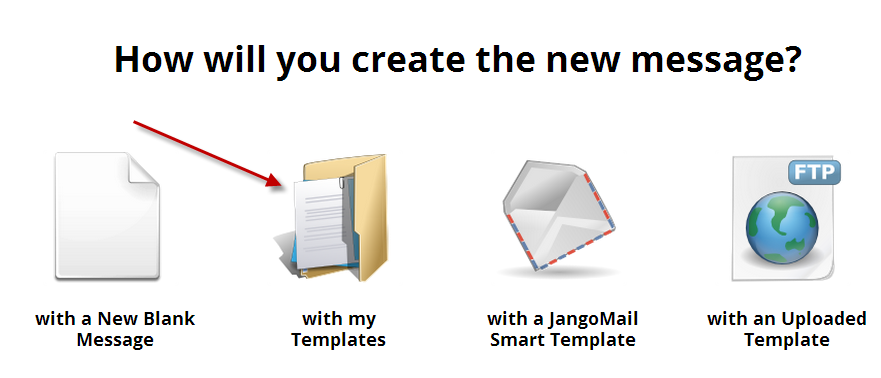
    If you decide to alter a design yourself to use on a regular basis, you can save it as your template when you are in edit mode. Go to the Settings tab and click Yes under the 'Mark as template' option.  It will be saved to your account with your personalized changes. You can access it when you click the blue New Message button.  Select the 'with my Templates' envelope to view all of your templates. The original version of the template will still be in the JangoMail Smart Template section.


  • To create a link: Select the text that you want to link and click the chain link button in the middle of the second row of the editor. Enter your link URL and click the green Insert button to complete.
  • Social Sharing Links:  You can add social sharing links.  Go above the editor, to the top right below the purple JangoMail header. Click the third button from the right, which has a computer screen icon on it.  Select Social Links from the drop-down menu and copy the HTML of your choice.  Navigate back down to the editor and press the HTML button.  Paste the Social Sharing HTML into your email and click the green Update button.  Note: You can also insert Facebook and Twitter buttons which are located in the last row of the toolbar in the editor.
  • Unsubscribe Link:  You can insert an unsubscribe link and statement.  We recommend inserting it at the bottom of your message.  Scroll through your message text until you reach the last line.  Start a new line underneath and click the UNS button to insert.  This is the first button in the last row of the editor.


Happy emailing, in STYLE! We hope you enjoy our new templates and tips.


Please don't hesitate to call us at 855-709-4099, or submit a ticket at jangomail.com/support.

Friday, November 29, 2013

Gene Marks: Email Marketing Thoughts

A guest post by Gene Marks

Every month my company sends out five newsletters and another five to ten mass emails to other groups.  We've been doing this for ten years.  And it works.  Most of the time.  We've had a ton of failures.  But mostly success.  So what have I learned?  Lots.  Let me at least share these three things.

1.  Have many lists.  No one does email “blasts” anymore. Today, you're sending targeted messages.  The size of your list really doesn't matter.  It's the quality.  What good are 1,000 people on an email list when only 20 actually read your newsletter?  Look at your database and then segment, segment, segment.  Ask yourself, what do these people want to hear about?  A specific product or service?  Issues affecting their industry?  Don't just blast out an email to everyone.  Blast out ten emails to ten different groups who have ten different interests.  And schedule your emails depending on the group.  The suspects who gave you their business cards at tradeshows might want to hear from you three or four times a year.  You're A-list customers should be getting messages from you at least once a month. The prospects who showed some interest in your products or services and may be interested again someday should be getting information from you every couple of months.   Your lists will be ever changing.

2.  Educate, don't sell.  No one wants to get emails with sales pitches jammed down their throats.  Instead, come up with two or three pieces of advice you want to give to your audience.  They may be specifically or indirectly related to your product or service.  They may have something to do with your industry or region. You're an expert.  You can come up with these topics.  Help your readers get smarter.  Sure you can plug your products somewhere on the sidebar or bottom of your message, as long as it's done unobtrusively.  But your first goal is to educate your reader.  Give them some food for thought.  Elicit some action, like a click to a more detailed article on your blog, a request for a whitepaper, a sign up for a seminar or webinar.  Establish your company as a thought leader in your field.  Use your email messages to show how good you are and justify why the reader should be comfortable doing business with you.  Don't like to write?  Then come up with an idea and hire someone who can.  Which brings me to my last item…

3.  Invest and commit.  This is not a campaign.  It's a long term commitment. An email service may be relatively inexpensive but it's really just a fraction of the overall cost.  To really get results you have to do this for a long, long time.  You have to build a devoted readership.  People will be drawn to your emails if they're getting useful information in a reliable and consistent manner.  You don't have the time to do this yourself.  You're going to have to hire or contract someone to help you.  This person will have a lot to do:  maintain and update your database, craft the messages, administer the emails, oversee your “opt-in” process, make sure people who respond get noticed and keep things interesting.  Again and again and again.  This will take time and money.  But doesn't everything in business take time and money?

Just remember:  you can't put a gun to someone's head and tell them to buy from you.  All you can do is stay in their minds just enough so that when there's an interest your company is thought of first.  That's the goal of an effective email marketing process.  Oh, one more thing:  grow a thick skin. Because that guy who opted in two years ago may for some reason be in a bad mood when he gets an email from you and responds with a nasty-gram.  This has happened to me a lot over the years. Oh well.

Friday, November 22, 2013

On Track With Jack: Email Deliverability


Happy early Thanksgiving JangoMail Users!

Can you believe it?  Thanksgiving is next week, which also means that you are going to start sending your holiday emails.  Before you add the final touches, take a look at my tip, well question, of the week:

Are you a Safe Sender?


In this day and age, post Pilgrim and Squanto times, email clients have become quite good at upping their security measures, which can affect your email deliverability and send your messages straight to spam.

It's important to make sure you are a Safe Sender, and encouraging your recipients to create a Safe Sender, or White List, will ensure deliverability.

To start, I would recommend sending an email with step-by-step instructions on how to create a Safe Sender List, and remove emails from spam.   Step-by-step guides with screenshots work best.  If you're concerned that your users never check their Spam Folder, post a guide on your website and social media networks.  They work well near your opt-in form and confirmation page.

In JangoMail, you can determine which email client your subscribers use most and shape your instructions around those providers.

In our case, Outlook ranks high and Gmail is king.  Here are the steps we suggest:

Microsoft Outlook 2010 / 2013

To remove from the Junk Folder:
1.  Check your Junk Folder
2.  Click on the email message to highlight it
3.  Go to the Home tab
4.  Select the arrow on the Junk drop-down menu
5.  Choose Never Block Sender's Domain


To create a Safe Sender List:
1.  Under the Home tab go to the Junk drop-down menu and click on Junk Email Options
2.  In the new window click the Safe Senders tab
3.  Click the Add button and enter in the desired email address
4.  Click OK

Gmail

To remove from the Spam Folder:
1.  Go to the Spam Folder
2.  Locate message from us
3.  Select the message
4.  Click the "Not Spam" button

To create a Safe Sender List:
1.  Enter JangoMail in the search bar
2.  Click arrow in the right of the search bar to filter
3.  Click Create filter link at the bottom right
4.  Select Never send it to Spam
5.  Click the “Also apply…” box to apply to similar messages
6.  Choose the blue Create button


To recap: Make sure you are a Safe Sender before your next email campaign.  Send an instructional email to your subscribers to show them how to add you to their Safe Sender / White List.


Sincerely,

Jack the Jangolope
Department of Awesome
JangoMail


About Jack
Jack the Jangolope is our JangoMail mascot.  Each week, look for Jack's emails for marketing advice, trends, and quick tips on how to grow your email marketing plan to the fullest!  Hop into email marketing each week with Jack's helpful tips!
We want to hear from you. Remember, at JangoMail it's your email, your way.  Have a topic you would like Jack to cover?  Email us at marketing@jangomemail.com with the subject line: On Track With Jack.  Follow Jack on Facebook