Showing posts with label custom. Show all posts

Wednesday, June 11, 2014

Good and Bad Unsubscribe Techniques

By: Ajay Goel
Founder, Chairman

When I first founded JangoMail, I would subscribe to as many newsletters as I possibly could, in order to check out the "Powered by ..." tagline at the bottom of emails to gauge which companies are using which email marketing services.  It helped me keep an eye on the competition.  Recently, however, I wished to clean up my Inbox and decided to unsubscribe from all of the newsletters that I had originally subscribed to for data collection purposes, but never ended up reading.  I was infuriated at how difficult most email marketing services' unsubscribe processes are and simultaneously proud of JangoMail's own unsubscribe feature, which is simple, intuitive, and customizable.

I found that if an unsubscribe mechanism is too difficult to use, I'm more likely to click my email tool's "report spam" button, which is an easy way to ensure I don't receive that sender's email anymore, but makes me feel guilty for punishing the sender.

A good unsubscribe mechanism:

  1. Focuses on convenience for the user, not on convenience for the sender.
  2. Should require two clicks at the most. One click within the body of the email message, and optionally one click on the web page to confirm that the first click wasn't a mistake or a bot.
  3. Should be instant on the sender's side. An unsubscribe mechanism shouldn't require "2-3 business days for processing".
  4. Should not require you to log in to a website.
  5. Should not email you "one final email" to confirm your unsubscribe. An unsubscribe means you don't want any more email from that organization.

Let's jump right in and look at examples of bad unsubscribe mechanisms:

Constant Contact--"Instant Removal" is anything but instant


To unsubscribe from an email sent by Constant Contact, you must ENTER IN YOUR FULL EMAIL ADDRESS.  This places the burden of the work on the subscriber, not the sender.  Therefore whenever I wish to unsubscribe from a newsletter sent via Constant Contact, I click "report spam" to save myself the work of navigating a difficult unsubscribe process.  As a veteran and proponent of the email marketing industry, I'm loathe to recommend to anyone to use the "report spam" mechanism in favor of the "unsubscribe" mechanism, since the "report spam" button will punish the sender and reduce their deliverability.  In cases where the unsubscribe process is as infuriating as Constant Contact's, however, I'd fully support clicking "report spam" to save the subscriber time. What's even more incredulous is how Constant Contact names its unsubscribe mechanism "Instant Removal with SafeUnsubscribe".  There is nothing "instant" about their unsubscribe mechanism.


eHarmony--requires a login


I haven't been a paid member of eHarmony for years, but I still receive their emails. Asking me to log in to unsubscribe is inconvenient and time consuming.  As a consumer, I'm more likely to report the email as spam instead of taking the time to figure out how to log in, which would require resetting my password since I can't remember what my credentials are, and then, unsubscribing myself.


iContact--insults your intelligence


The Unsubscribe link is prominent and clickable.  The resulting web page tricks the user though, by having the "Continue to send me email" selected by default.  Why would any legitimate email marketing service set that as the default option after a user has just clicked the "Unsubscribe" link?  The "Never email me again" option should instead be pre-selected so that the user need only click the Update button to complete the unsubscribe process.


Silverpop--confusing


In this example, there is no direct unsubscribe link.  Instead the email message provides an "Edit your Email Preferences" link. The resulting web page requires you to enter your email address, and then in what can only be an attempt at a Jedi mind-trick, the bigger more prominent button is the one to NOT UNSUBSCRIBE.  This button is useless, since it would be expected that the user would simply close his browser if he wishes to keep the status quo.

Early on in my career, I had a Yellow-pages ad saleswoman meet me in my office to sell me an advertisement space in the book.  At the end of our meeting, I thanked her for her time, but told her I wasn't interested in buying an advertisement space.  She then whipped out a contract and asked me to sign a statement indicating that I was declining to buy a Yellow-pages ad.  I was mortified.  Can you imagine a world where we have to sign a contract for everything we DO NOT want, versus everything we do want?  Don't make your unsubscribe mechanism remind me of my experience with the Yellow-pages saleswoman.


Zoniac--living in the 90s


Zoniac is an email marketing tool specifically for the IT staffing industry.  They impose a 24-48 hour window on when the unsubscribe will take place.  Imposing a two day time period on making an unsubscribe happen is akin to having a user go to a website and being told that they must wait two days before the homepage loads.  In today's modern world of real-time database transactions and 24-hour connected servers, there is no excuse for an unsubscribe process to take more than a few milliseconds to take effect.

In Conclusion...


Make your unsubscribe link easy to use in order to avoid being reported as spam. A good unsubscribe mechanism is good for email deliverability, and high email deliverability is tantamount to a successful email campaign.  JangoMail's unsubscribe mechanism is a direct link, and each client can customize whether the link within the email instantly unsubscribes the user, or whether the resulting web page asks for a second, confirmation link.  No 24 hour delays, no entering your email address, no logging in, and no "one final email" after the user has unsubscribed.  This is just one way JangoMail delights your subscribers and optimizes your deliverability.

Monday, September 26, 2011

The importance of setting up a custom tracking domain for email marketing campaigns

Setting up a custom tracking domain is one of the easiest ways to improve your email deliverability for broadcast and transactional email campaigns.

What is a tracking domain?

A tracking domain is the domain used in various tracking mechanisms, such as the open-tracking, click-tracking and forward-to-friend tracking. It is present throughout the HTML portion of your email campaign. Without a custom tracking domain, a system default domain is used, like x.jango5.com. If you setup a custom tracking domain, based on your organization's domain, then the domain might look like x.mycompany.com.

Why is setting up a custom tracking domain important?

It allows your domain to establish its own reputation with email receivers, not clouded by other JangoMail users. By setting up your own, you can isolate yourself from the activities of our other clients and ensure higher deliverability. Additionally, your emails will be further branded around your own organization, not the email service provider.

How do you setup a custom tracking domain?

First, choose the domain you'd like to use for your tracking domain. If your domain is browniekitchen.com, then setting up x.browniekitchen.com makes for the perfect tracking domain.

Secondly, an entry needs to made in your DNS (Domain Name Server) system. You can do this yourself if you have access, or you may need to contact the technical person who manages your domain. You need to modify your DNS settings such that you create a CNAME record for your chosen domain to alias to jngo.net. Detailed instructions are also on the Settings/Tracking Domain  page under About Tracking Domain. Lastly, enter your tracking domain in JangoMail by going to Settings --> Tracking --> Tracking Domain.


After completing this final step, you will notice that your custom tracking domain will now appear in the URL for click-tracked links, in the open-tracking pixel reference, and in other places throughout your HTML email campaigns.

Other deliverability optimization steps

Setting up a custom tracking domain is just one of many measures you can implement to optimize your email deliverability. To read about other steps, see the blog post entitled: Optimizing deliverability with JangoMail

Wednesday, April 21, 2010

How to write a custom web server script for JangoMail integration

JangoMail was one of the first and is one of the only email marketing service providers that can connect to a customer's web site database in real-time. Historically, we've supported and provided web server script files for 4 different scenarios:

Active Server Pages / ODBC Database -- w_1.asp
Active Server Pages / Microsoft SQL Server -- w_2.asp
Active Server Page / Microsoft Access -- w_3.asp
PHP / MySQL -- w_4.php

Recently, we added a fifth option:

ASP.Net page / Microsoft SQL Server - w_5.aspx

All five of these platforms and the five corresponding files are provided to you by JangoMail.

Still, many customers have web/database server that don't fit into one of these canned scenarios. Now, you have the ability to write your own web server script file, based on whatever platform you're running.

First, let's look at the screen in JangoMail where you plug in variable names and values that will be passed into your custom web server script.


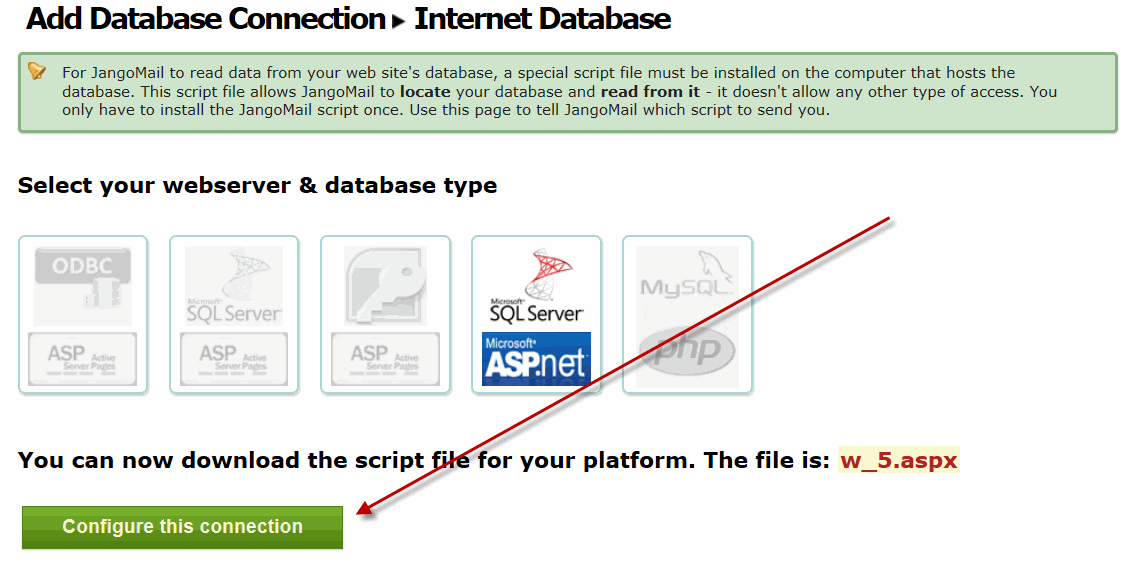
Go to Lists --> Databases --> Add New Item


Select Internet Web Database and then ASP.net. 


Download the script file provided and upload it to your platform.
Then click Configure this connection.


Here you will enter your variable names and values.

There are seven variable names and values you may specify. You need not use all seven. For each variable name/value that you specify, your web server script file must be written to accept each variable as a FORM POST. The variable and its corresponding value will be passed to your script file. Note that the variable "action" will be passed always with the value "massmail". This informs your script file that the purpose of this call is to generate a set of data for a mass emailing (as opposed to a synchronization call which we'll cover later).

Once you've programmed your script to accept the variables and values via FORM POST, you must next program your script to generate data based on these variables. Example variables may be:

DatabaseName
DatabaseLogin
DatabasePassword
SQL

Based on your web/database platform, these four variables may be sufficient for your script to connect to your database and generate a set of email addresses and other corresponding data.

Regardless of the input parameters that your script takes, the script must generate your email list data in the following format:

FieldName1,FieldName2,FieldName3___ASDF---BREAKValue1WG0COLWG0Value2WG0COLWG0Value3WG0ROWWG0ValueAWG0COLWG0ValueBWG0COLWG0ValueCWG0ROWWG0WANGO-ENDOFDATASTREAM

Let's break this down and look at it more closely. The output the script should generate is:

1. The field names, separated by a comma.
2. Next, is a standard separator used by JangoMail to separate the field names from the field values: "___ASDF---BREAK"
3. Next comes the actual data, using a column separator of "WG0COLWG0" and a row separator of WG0ROWWG0 (and add an extra row delimiter at the end, before the "end of data stream" line).
4. Finally, at the end of the data string, end with "WANGO-ENDOFDATASTREAM"

For example, assuming you're passing in the correct parameters to connect to your database, and your SQL is:

select FirstName, LastName, EmailAddress from Users

and it returns two records, the output of the script should look like:

FirstName,LastName,EmailAddress___ASDF---BREAKJohnWG0COLWG0SmithWG0COLWG0johnsmith@yahoo.comWG0ROWWG0NateWG0COLWG0LakemanWG0COLWG0nlakeman@gmail.comWG0ROWWG0WANGO-ENDOFDATASTREAM

Therefore, using the example above with the four input variables, the screen would be filled in as follows:


This example assumes that I have called my script file JangoScript.do and that I've placed it in the root directory of www.browniekitchen.com. It also assumes that JangoScript.do is programmed to accept the five POST variables: action, DatabaseName, DatabaseLogin, DatabasePassword, SQL.


When you connect to that profile, JangoMail will connect to your JangoScript.do file, the script will output the data for the two records, and take you to this screen, where you can select your campaign to send to the two recipients:


Frequently Asked Questions
1. Do I have to pass in variables to my script file, or can I hard-code the values directly into my script file?

No, you don't have to pass in any variables to the script file, and you may hard-code them within the script file. The disadvantage to doing so are that a. This allows anyone that knows the script file exists to access it and have it output your email list data and b. It prevents JangoMail from synchronizing your database with unsubscribes, bounces, and other recipient actions, since the SQL query will be hard-coded within your script file, and the SQL query will be the query to retrieve email list data, not update it. A better solution may be to do a hybrid between the integration scenario presented above and hard-coding. For example, the database credentials could be hard-coded into the script file, while only the SQL query and a special password that is validated within the logic of the page is passed to the file by JangoMail.

2. Is this method of connecting to my data secure?

Yes. It is inherently secure if you opt to have JangoMail connect over https instead of http. It can be additionally secured by restricting the range of IP addresses allowed to connect to the custom script file. JangoMail's range of IP addresses are: 209.173.141.193 - 209.173.141.255

3. What is the purpose of the "action" variable name that is forced?

The action variable set to "massmail" tells the script file that this call is specifically to retrieve email list data for a mass emailing, as opposed to other possible actions, like those that synchronize the data with unsubscribe and bounce data.

4. Why does JangoMail need to know which of my variables represents the SQL string?

If you're only using the Web Database Connect feature to retrieve email list data via the web interface only (not the API), you can ignore this setting. This setting is only relevant if you wish to do one of the following:

a. Call the SendMassEmail API method and specify a SQL query in the ToWebDatabase input parameter.
b. Use any of the data synchronization options, like syncing unsubscribe and bounce data back to your database.

In both of these cases, a Master Web Database Profile must be set under Settings. And then, when JangoMail calls the SQL for either scenario a or b, the SQL for the scenario will be passed as the value of the variable rather than the value in the actual web database profile.

5. Where can I read more about this feature?

The following PDF was written when the Web Database Connectivity feature was first made available, and when it was only available on the first four platforms:

https://www.jangomail.com/documents/Public/JangoMail_Tutorial_Web_Database.pdf