Showing posts with label email lists. Show all posts

Thursday, April 03, 2014

Command Center: Conditional Logic

By: Dave Walker
Technical Support Engineer

Meet Bob. Bob has a problem. Bob owns a car dealership, and it's time for the new models to arrive. There's a new sports car, a new family car, and a new truck. His problem is that he only has one contact list, and he wants to send different announcements to different customers. There's no need to send an email about sports cars to truck buyers, and the young rich kids don't want the family sedan.

Bob can always split his list into parts. He can make a list of sports car buyers, and a list of family car buyers, and a list of truck buyers. Bob, though, works out of this same database on a regular basis, and it already identifies the customers appropriately. Splitting the lists is extra, tedious work.

Bob uses JangoMail to save time. Good for Bob! JangoMail's “Conditional Logic” feature lets him use his existing database of contacts, and still send different messages to his customer segments.

Bob creates a single message. The top and bottom of the message contain fairly standard stuff. He has a logo, his address, greeting text, and other content that will not change from segment to segment. In the middle of the message, though, Bob is having fun.

Using Conditional Logic's power, Bob puts three different pieces of content in the middle of the message. Each has a photo of the vehicle, text describing it, and a price. Bob creates one message with all three pieces of content. Using some basic scripting commands, Bob links these pieces of content to the data field for customer interest.

If the customer is interested in a sports car, we'll give that customer the sports car content. Likewise for family car and truck buyers. At send time, JangoMail looks at the contact data, and inserts the appropriate content for each recipient. If the database field says “sportscar” then that recipient will only see the content provided for that segment. Everybody wins!

You can be like Bob. JangoMail's conditional logic feature allows you to customize text, images, layout, and many other aspects of your message based on data in your list's contact data. One message to rule them all.


Tuesday, February 25, 2014

Are You Making the Most of Your Custom Opt-in Form?

By: Erica Melzer
Account Executive


If you’re using a JangoMail opt-in form on your web page, then you are one smart cookie! This is a great way to grow your lists and collect lots of useful information about your customers.

Are you making the most of your opt-in form by using a variety of custom field types?

If every question on your form is being answered in a text box, then maybe not. The good news is, unlike most email marketing platforms, JangoMail lets you use any combination of large and small text boxes, check boxes, radio buttons, and pull down lists.

Why is this important?

Using a variety of field types allows you control much of the data you get back from your customers.  This is crucial if you plan to use that data to segment your lists and personalize your messages.  It also makes for a more sophisticated and efficient email marketing program.


For example, if you ask for a birth month and offer customers a text box to provide their answer, you could get back almost anything in that field like:

January, Jan, Janruary, 01, 1, Capricorn

Say you wanted to send a message to anyone on your list with “January.” Your message will only go to those that entered “January,” and not to anyone that misspelled or abbreviated their birth month. The most reliable way to segment your lists, according to field data, is to control the data by using pull down lists, radio buttons, and check boxes whenever possible.

If you’d like to know more about using the different field types supported by JangoMail, segmenting your lists, and personalizing your messages, our Support Reps will be happy to help. You can create a ticket or give us a call between 7 A.M. and 7 P.M. (US/EST) at 888-465-2646.

Friday, November 29, 2013

Gene Marks: Email Marketing Thoughts

A guest post by Gene Marks

Every month my company sends out five newsletters and another five to ten mass emails to other groups.  We've been doing this for ten years.  And it works.  Most of the time.  We've had a ton of failures.  But mostly success.  So what have I learned?  Lots.  Let me at least share these three things.

1.  Have many lists.  No one does email “blasts” anymore. Today, you're sending targeted messages.  The size of your list really doesn't matter.  It's the quality.  What good are 1,000 people on an email list when only 20 actually read your newsletter?  Look at your database and then segment, segment, segment.  Ask yourself, what do these people want to hear about?  A specific product or service?  Issues affecting their industry?  Don't just blast out an email to everyone.  Blast out ten emails to ten different groups who have ten different interests.  And schedule your emails depending on the group.  The suspects who gave you their business cards at tradeshows might want to hear from you three or four times a year.  You're A-list customers should be getting messages from you at least once a month. The prospects who showed some interest in your products or services and may be interested again someday should be getting information from you every couple of months.   Your lists will be ever changing.

2.  Educate, don't sell.  No one wants to get emails with sales pitches jammed down their throats.  Instead, come up with two or three pieces of advice you want to give to your audience.  They may be specifically or indirectly related to your product or service.  They may have something to do with your industry or region. You're an expert.  You can come up with these topics.  Help your readers get smarter.  Sure you can plug your products somewhere on the sidebar or bottom of your message, as long as it's done unobtrusively.  But your first goal is to educate your reader.  Give them some food for thought.  Elicit some action, like a click to a more detailed article on your blog, a request for a whitepaper, a sign up for a seminar or webinar.  Establish your company as a thought leader in your field.  Use your email messages to show how good you are and justify why the reader should be comfortable doing business with you.  Don't like to write?  Then come up with an idea and hire someone who can.  Which brings me to my last item…

3.  Invest and commit.  This is not a campaign.  It's a long term commitment. An email service may be relatively inexpensive but it's really just a fraction of the overall cost.  To really get results you have to do this for a long, long time.  You have to build a devoted readership.  People will be drawn to your emails if they're getting useful information in a reliable and consistent manner.  You don't have the time to do this yourself.  You're going to have to hire or contract someone to help you.  This person will have a lot to do:  maintain and update your database, craft the messages, administer the emails, oversee your “opt-in” process, make sure people who respond get noticed and keep things interesting.  Again and again and again.  This will take time and money.  But doesn't everything in business take time and money?

Just remember:  you can't put a gun to someone's head and tell them to buy from you.  All you can do is stay in their minds just enough so that when there's an interest your company is thought of first.  That's the goal of an effective email marketing process.  Oh, one more thing:  grow a thick skin. Because that guy who opted in two years ago may for some reason be in a bad mood when he gets an email from you and responds with a nasty-gram.  This has happened to me a lot over the years. Oh well.

Friday, September 27, 2013

On Track With Jack: Reconsider Email Attachments

Hello JangoMail Users!

Jack here reporting from the JangoMail headquarters. Today's tip comes from our support team:

Reconsider Email Attachments

When you have a large file to send, you may want to think twice about sending as an attachment. Ask yourself, "Is there a better way to get my message across?" Size and security are the two main deliverability issues that will prevent your subscribers from receiving your attached message.

There is a better way to incorporate files into your email marketing plan. Upload your assets to JangoMail and embed them within your email. For larger files, post to your website and create links within the body of your email. Encourage readers to click for more information.

Embedded links will not only increase traffic back to your site, but will also provide you with click tracking data throughout your email to see what your audience is interacting with the most.

Emails without attachments are also easier to access since downloading is not required. It sounds silly, but subscribers are usually on the go and this saves them a step. Convenience is key!


To recap:

  • Attachments could cause deliverability issues.
  • Email links encourage users to visit your website, which will increase traffic.
  • You can track clicks throughout your email to see what your audience is interacting with most.
  • Messages without attachments are easier for your recipients to access.  Your message is just a click away instead of taking additional steps to download.
  • Are there times when attachments are needed? Of course. That's why we support them. Just remember to think twice before you send any attachments to make sure it's the right message for your audience!

If you need help with anything, like installing click tracking, please Contact Support.


Sincerely,

Jack the Jangolope
Department of Awesome
JangoMail


About Jack
Jack the Jangolope is our JangoMail mascot.  Each week, look for Jack's emails for marketing advice, trends, and quick tips on how to grow your email marketing plan to the fullest!  Hop into email marketing each week with Jack's helpful tips!
We want to hear from you. Remember, at JangoMail it's your email, your way.  Have a topic you would like Jack to cover?  Email us at marketing@jangomemail.com with the subject line: On Track With Jack.  Follow Jack on Facebook

Monday, March 19, 2012

Calling the JangoMail Web Service in Python

Python is a language that seems to make so many mundane programming tasks easy. Unfortunately, some python libraries are perhaps less fully developed than the libraries of other languages. This is certainly the case of the python soap libraries SOAPpy and SUDS. In my experience, both libraries are painfully buggy. In python, I think it's easier just to use httplib and build the xml manually. Luckily, python's other conveniences make that pretty easy!

In this example, we build an xml template for calling Groups_GetList_String. To test it with your own account, just insert your own JangoMail/JangoSMTP credentials. Download the source code for this example to start your own integration!


import sys
import httplib

# setup the sml template xml for a call to Groups_GetList_String
SM_TEMPLATE = """<?xml version="1.0" encoding="utf-8"?>
<soap12:Envelope 
    xmlns:xsi="http://www.w3.org/2001/XMLSchema-instance" 
    xmlns:xsd="http://www.w3.org/2001/XMLSchema" 
    xmlns:soap12="http://www.w3.org/2003/05/soap-envelope">
  <soap12:Body>
    <Groups_GetList_String xmlns="http://api.jangomail.com/">
      <Username>%s</Username>
      <Password>%s</Password>
      <RowDelimiter>%s</RowDelimiter>
      <ColDelimiter>%s</ColDelimiter>
      <TextQualifier>%s</TextQualifier>
    </Groups_GetList_String>
  </soap12:Body>
</soap12:Envelope>
"""

# fill in the parameters for our call
SoapMessage = SM_TEMPLATE%("Your JangoMail/JangoSMTP Username", 
              "Your Password", "\n", " - ", "")

# examine the soap message that we have constructed
print SoapMessage

# insert the proper values into the header
webservice = httplib.HTTP("api.jangomail.com")
webservice.putrequest("POST", "/api.asmx")
webservice.putheader("Host", "api.jangomail.com")
webservice.putheader("User-Agent", "Python post")
webservice.putheader("Content-type", 
    "application/soap+xml; charset=\"UTF-8\"")
webservice.putheader("Content-length", "%d" % len(SoapMessage))
webservice.putheader("SOAPAction", 
    "http://api.jangomail.com/Groups_GetList_String")
webservice.endheaders()
webservice.send(SoapMessage)

# get the response and print it
statuscode, statusmessage, header = webservice.getreply()
print "Response: ", statuscode, statusmessage
print "headers: ", header
res = webservice.getfile().read()
print res

Monday, September 13, 2010

New Feature: Use a Report to Create and Send to an Email List

We just launched a new feature that makes it easier to send Follow-Up Emails and create Email Lists from previous campaigns. In the past, to send an Email Campaign to recipients who responded to a previous campaign, users had to visit the EMAIL LISTS section. Here users had to write SQL in the Advanced Query Editor to create a list of recipients who opened, clicked or viewed a certain page from a  past email.  Now users can immediately create an Email List or send an Email Campaign from a report. JangoMail users can filter Opens, Clicks and Page Views reports down to any level to create an Email List or to immediately send an Email Campaign to the recipients in the report.

We have two new options in reporting that will pull the data in a report to:

1. Create an Email List
2. Send an Email Campaign to the email addresses in the report


These icons are available in our Opens, Clicks, and Page Views reports for our email broadcast campaigns.

Create an Email List from a Report
1. Go to Reports.
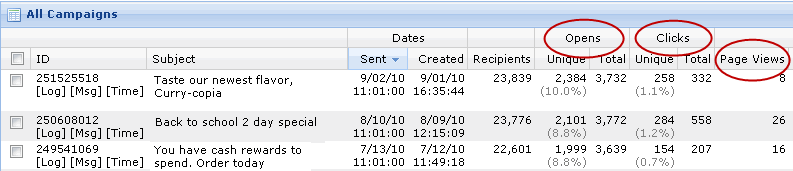
2. Pull up an Opens, Clicks, or Page Views Report by clicking on any number in those columns.
3. Use the Filter to narrow down your report to the recipients who you would like to add to your Email List. In this example, we are creating an Email List that includes recipients who clicked on a certain link.


4. Click on the Envelope Icon and select Create a List.


5. You might be asked to allow scripted windows. If not, proceed to step 6. Otherwise, click on the message on the top of the screen and chose to allow scripted windows. Then click on the Create a List link again.
6. There will be a short wait while JangoMail creates your Email List. When it is ready, it will appear in the section under the Lists tab.

Send an Email Campaign from a Report
1. Go to Reports.
2. Pull up an Opens, Clicks, or Page Views Report by clicking on any number in those columns.

3. Use the Filter to narrow down your report to include only the recipients who you would like to email. In this example, we will use a list that includes customers who clicked on a certain link.


4. Click on the Envelope icon and click Send Email.


5. In a few moments, JangoMail will upload an Email List from the report and direct you to the Messages Page so that you can begin composing your message.