Monday, February 25, 2008

New Bounce Handling Options

As a result of customer requests, JangoMail can now have bouncebacks e-mailed to either the From Address on an outbound e-mail campaign, or any other designated e-mail address.

History:

Prior to switching our SMTP platform in March of 2007, JangoMail was using the Microsoft SMTP service to send e-mails. The MS SMTP service e-mailed back bounced messages to the address used in the MAIL-FROM part of the SMTP transaction. When we switched to our custom JangoMail SMTP Service in March 2007, this functionality disappeared, and instead all bouncebacks were stored in our database, rather than e-mailed back to the sender.

Now:

Under Settings --> Reply Management --> Bounce Handling, you can now specify whether bouncebacks should be e-mailed or not. You can choose to have bouncebacks:
  1. E-mailed back to the From Address on the e-mail campaign
  2. E-mailed to a different designated e-mail address
  3. E-mailed to both.
Additionally, on the Send E-mail page, we have removed the "Bounces handled by JangoMail" checkbox next to the From Email Address field, since bounces are now (since March 2007) always handled by JangoMail, regardless of whether the bouncebacks are e-mailed to the sender or not. However, you do still have control of the MAIL-FROM address. If you would like the MAIL-FROM address used in the SMTP transaction to be the same as the designated From Address, you can uncheck the checkbox under Advanced Options labeled MAIL-FROM Address.

Thursday, January 31, 2008

A better "My Options" menu

We have re-organized the menu under the My Options tab to be clearer and more user-friendly. The Branding section now includes functionality related to making JangoMail transparent to your recipients. The Composing section now includes functionality related to the authoring and composing of your e-mail campaigns.

Tuesday, January 29, 2008

Bug Fix: Group fields with dashes in it were not searchable

We have fixed a bug with Group Search where if the Group field name upon which you were searching had a dash, the search would always return zero records.

For example, if your field name was "First-Name", and you were searching for all records where "First-Name" was equal to 'John', this would previously fail. This issue has now been corrected.

Wednesday, January 23, 2008

JangoMail Launches Integration with Google Analytics

Overview

While we haven't officially announced this yet, it is available for you to use - our integration with Google Analytics. Google Analytics is a free web site analytics tool that tracks the success of your web site by measuring page views, landing pages, exit pages, funnel paths, conversions, and provides this data to you in various formats as well - raw data, as a map overlay on the world, or as a graphical overlay on top of your web site.

JangoMail's integration with Google Analytics allows you to track the success of your web site specifically after you send a mass e-mail campaign to your recipients through JangoMail.

JangoMail has always provided its own built-in web analytics tool - we simply refer to it as Web Site Activity Tracking, and you can learn more about it in this PDF tutorial.

Now, with our integration with Google Analytics, you can use both -- JangoMail's built-in analytics tool and Google Analytics -- for the best of both worlds.

How to do it

There are a few simple steps to get started with JangoMail and Google Analytics.
  1. To setup a free Google Analytics account, go to http://www.google.com/analytics/.
  2. Add the Google Analytics JavaScript code to all pages of your web site that you want tracked.
  3. Turn Google Analytics on in your JangoMail account by logging in, going to My Options --> Google Analytics.
  4. Make sure you enable Click Tracking on all of your outbound e-mail campaigns.
And you're done. Turning on Google Analytics in your JangoMail account appends a few parameters to your final destination URLs in your e-mail campaigns. These parameters are:

utm_source (set to "JangoMail")
utm_medium (set to "EmailMarketing")
utm_content (set to the recipient's email address)
utm_campaign (set to the Subject of your campaign plus the JangoMail Campaign ID in parentheses after the Subject)


For example, if your e-mail campaign links to http://www.silicomm.com then if you enable Click Tracking and you turn on Google Analytics under My Options, when a recipient of your email clicks the link to http://www.silicomm.com, he will actually be taken to:

http://www.silicomm.com/?utm_source=JangoMail&utm_medium=
EmailMarketing&utm_campaign=This+is+just
+a+test+campaign%2878964283%29&
utm_content=ajay%2Egoel%40silicomm%2Ecom


We recommend using JangoMail's inherent Activity Tracking feature in conjunction with our integration with Google Analytics. You can turn on Activity Tracking in your account by going to My Options --> Activity Tracking. Doing so will add two additional parameters to your destination URL (jmid and j):

http://www.silicomm.com/?jmid=1&j=78964283
&utm_source=JangoMail&utm_medium=
EmailMarketing&utm_campaign=This+is+just
+a+test+campaign%2878964283%29&
utm_content=ajay%2Egoel%40silicomm%2Ecom


JangoMail Analytics vs. Google Analytics

Note that JangoMail's Activity Tracking feature works by placing a one-line img tag at the bottom of all of your web pages, while Google Analytics works by placing several lines of JavaScript at the bottom of all your web pages.

Tuesday, January 22, 2008

JangoMail is on the Habeas SafeList!

Today, Habeas has completed its audit of JangoMail and has added JangoMail's list of shared sending IP addresses to the Habeas SafeList. This means even higher deliverability rates for all JangoMail clients using the shared IP addresses. According to Habeas, the SafeList is the "industry's most widely-used Internet whitelisting service for legitimate commercial senders" and being SafeListed results in "improved delivery to over five million servers at Fortune 1000 companies and ISPs around the world".

Here is Habeas's 2 page PDF document on the benefits of being on the SafeList:
http://www.habeas.com/fileadmin/resources/Habeas_SafeList_DS.pdf

Below is a chart summarizing delivery rate improvements in Habeas SafeListed senders:


In addition to the JangoMail shared pool of IP addresses being added to the SafeList, any emails sent through a SafeListed IP address will have these additional headers added to the e-mail message:

Accreditor: Habeas
X-Habeas-Report: Please report use of this mark in spam to http://www.habeas.com/report/

Monday, January 21, 2008

New Bounce Methods for API/Web Service

We have deployed the following "version 2" of our Bounce retrieval methods. The "version 2" methods are identical to the older methods, but these new methods return two additional columns: the SMTP Diagnostic Code and the Definitive columns.

GetBounceListAll2

Gets the list of all e-mail addresses that have bounced at least once since the specified date. Includes SMTP Diagnostic Code and Definitive columns. Returns a string.

GetBounceListNormal2
Gets the list of e-mail addresses that have bounced X times since specified date, where X is a configurable parameter in your account. Includes SMTP Diagnostic Code and Definitive columns. Returns a string.

GetBounceListNormal_IncludePast2

Gets the list of e-mail addresses that have bounced at least X times in total, and at least once since specified date. X is a configurable parameter in your account. Includes SMTP Diagnostic Code and Definitive columns. Returns a string.

Reports_GetBouncesByCampaign_DataSet2

Retrieves list of bounced addresses for a particular mass e-mail campaign. Includes SMTP Diagnostic Code and Definitive columns. Returns a .NET DataSet.

Reports_GetBouncesByCampaign_String2
Retrieves list of bounced addresses for a particular mass e-mail campaign. Includes SMTP Diagnostic Code and Definitive columns. Returns a string.

Reports_GetBouncesByCampaign_XML2

Retrieves list of bounced addresses for a particular mass e-mail campaign. Includes SMTP Diagnostic Code and Definitive columns. Returns an XML document.

Thursday, January 17, 2008

Super Reporting in Beta

It's here! Login to your account, go to Reporting, and then click the link to try our new Super Reporting (Beta) and get these enhancements:

  • Deliverability reports by domain
  • AJAX-based campaign summary report with statistics that update right before your eyes, without refreshing your browser.
  • All reports are searchable
  • Bars, charts, and graphs
  • View metrics never seen before - like complaints per campaign, mailbox-full messages per campaign.
  • Self-diagnose deliverability issues by viewing the actual SMTP log file for any recipient for any campaign.
  • Time based reports showing opens/clicks/unsubscribes/bounces/page views hour by hour or day by day after a campaign launch
  • A Recipient Action summary report showing whether each recipient opened/clicked/unsubscribed/bounced/forwarded...all in one report.
  • Bounces now show the SMTP bounce code.
  • View the processing log for a campaign, showing how your campaign was processed from start to finish.
  • Click tracking broken down by HTML clicks vs. plain text clicks.

Note: You can always switch back to the "Classic Reporting" interface.

Wednesday, January 16, 2008

New Feature: Personalizing Subject/Message with the Campaign ID

You can now use the JangoMail-assigned campaign ID or a custom-assigned campaign ID to personalize the Subject and Message of your e-mail campaigns.

To use the JangoMail-assigned campaign ID, use the variable %%MassEmailID%%. To use a custom-assigned campaign ID, use the variable %%CustomMassEmailID%%. Custom campaign IDs can be assigned by filling out the Campaign Identifier field on the Send E-mail page.

This feature may be useful if you want to tag links with campaign IDs for your own internal tracking/reporting system.

New System Statistics Page

In conjunction with our "Total Transparency" theme for 2008, we have launched a JangoMail System Statistics page at http://www.jangomail.com/SystemStats.asp that allows you to peer into the internal activity of JangoMail on a daily basis. Every day, learn:

  1. How many campaigns were sent
  2. How many messages were sent
  3. How many message Opens there were across the entire system
  4. How many message Clicks there were across the entire system
  5. How many API calls were made during the day
  6. And much much more!
We'll be adding more and more statistics as time goes on.

Tuesday, January 15, 2008

New API Method: ImportGroupMembersFromFile

This new method allows you to import Group members from a file that you have previously FTPd. There are two steps to using this method:

1. FTP the file containing the data to ftp://client.jangomail.com. Use your JangoMail username/password to login. Navigate to the folder called "GroupImportsAPI". Place the file there.

2. Call the ImportGroupMembersFromFile method. For the "FileName" parameter, enter the name of the file which you FTPd in Step 1.

This method allows you to import larger sets of data into Groups from any file, whereas the older method ImportGroupMembersFromData has limitations on how much raw data can be passed through in one method call.

Friday, January 11, 2008

New Feature: Email Rendering

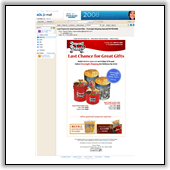
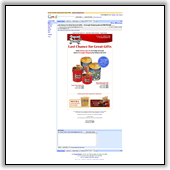
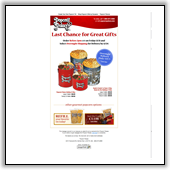
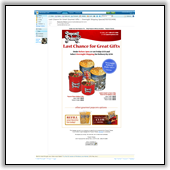
We have launched a new feature in beta - an Email Rendering Tool that allows you to see how your e-mail campaign renders in popular e-mail environments like Yahoo! Mail, GMail, AOL Mail, Outlook, and others, before you send to your actual list.

We are currently rendering in the following environments and plan to add more soon:
  1. AOL Mail
  2. GMail
  3. Hotmail
  4. Microsoft Outlook 2007
  5. Mozilla Thunderbird
  6. Windows Mail
  7. Yahoo! Mail
To use this feature, just click the Render button in the yellow bar on the Send E-mail page.

Here's an example of e-mail rendering from our client, Popcorn Palace (www.popcornpalace.com).


AOL Mail

Gmail

Microsoft Outlook 2007

Windows Mail

Hotmail

Yahoo! Mail

Mozilla Thunderbird


Noteworthy:

JangoMail is the only Email Service Provider to a) develop this feature from scratch and b) provide this feature free-of-charge to all users. A few of our competitors that have this feature license the technology from third parties and charge for it on a per-incident basis.

Monday, December 24, 2007

Encouraging the use of DomainKeys

To help ensure optimal deliverability to Yahoo! addresses, we are strongly encouraging all clients who use a non-jangomail.com From Address to ensure that their email messages are signed with DomainKeys. If you send from your @jangomail.com address, your messages are already DomainKeys signed. If you send from your own email address, then you need to setup JangoMail to sign messages for your domain.

Instructions on setting up DomainKeys can be found in this JangoMail DomainKeys Tutorial.

This week we will proactively be sending emails to those clients that send non-DomainKeys signed emails in order to encourage them to set up DomainKeys.

Saturday, December 22, 2007

JangoMail sets up Comcast Feedback Loop

JangoMail has joined the Comcast Feedback Loop as of this afternoon. Now any Comcast.net users that report e-mailings from JangoMail as spam, will automatically have their e-mail addresses placed on the specific customer account's unsubscribe list. This will improve JangoMail's overall reputation with and deliverability to comcast.net e-mail addresses!

Friday, December 21, 2007

"View as a Web Page" now supports personalization

Many customers have asked for this recently. Now, when you insert a "View as a web page" link into your HTML e-mails, if you're using personalization syntax within the HTML e-mail, that personalization will now properly render in the web page. Previously, the "View as a web page" feature did not show personalization and instead showed the percentage / field name syntax (example: %%FirstName%%).

To insert a "View as a web page" link into your e-mail, you simply insert this code into the body of your HTML message:

Click <A HREF="http://x.jngo1.net/w.z?***uniqueid****">here</a> to view this e-mail as a web page.


Alternatively, if you're using the Enhanced HTML Editor, you can simply click the "Web" button to dynamically insert a "View as a web page" link wherever the cursor is. To learn more about personalization syntax in your e-mail messages, see this tutorial.

Thursday, December 13, 2007

New Bounce Handling Rules

We have enhanced the way JangoMail handles bounces to improve overall system deliverability. Many of the top ISPs like Hotmail, Yahoo, AOL, GMail, and others have recently mandated that if an e-mail address bounces even once indicating that the mailbox doesn't exist, email marketers should cease mailing to that e-mail address immediately in order to ensure optimal email deliverability.

In conjunction with this, if a Bounce indicates that the mailbox does not exist, JangoMail will stop sending to this address from your account regardless of what numeric setting you have specified under My Options --> Bounce Handling.

However, if a Bounce indicates a temporary failure for that email address, then the numeric setting under My Options --> Bounce Handling will still apply.

Additionally the new Bounce handling mechanism will allow you to see the Bounce reasons for the life of your account rather than just for 7 days, once the enhanced Reporting module is in place (about six weeks from now).

Here are some examples to illustrate the new Bounce handling:

A bounce with a message like:
smtp;550 4.2.1 mailbox temporarily disabled: akidd4@verizon.net

is a temporary failure, and the setting under My Options --> Bounce Handling would apply.

A bounce with a message like:
smtp;550 No such user here

indicates that the mailbox does not exist at all, so a single bounce would prevent JangoMail from sending to this address in the future.

Thursday, November 08, 2007

New Feature: Blocking sign-up form spam by specifying an Exclusive Referrer URL

In the past, we outlined a method to block sign-up form spam by changing the encoding type of your sign-up form. That method may be found here.

This method will not work, however, in cases where the spambot isn't coming through your web site's form but rather by avoiding a form alltogether and programatically doing a FORM POST to our form processor file, http://www.jangomail.com/APPLICATION/PGSF2.asp or http://www.jangomail.com/APPLICATION/PGSF2ENC.asp.

To defend against this new technique for propagating sign-up form spam, you can now specify an exclusive Referrer URL from where the signup form must originate. You can now assign a specific exclusive Referrer URL to a particular JangoMail Group. Then, if a form signup comes from a destination other than the exclusive Referrer URL you have designated, the signup will not be processed.

Currently there is no interface within JangoMail for you to be able to set an exclusive Referrer URL yourself for an e-mail Group. Currently, our support team must do this for you administratively should you wish to take advantage of this setting.

Tuesday, November 06, 2007

New Feature: Generating a Plain Text Message Automatically at Run-Time

You can now have JangoMail automatically generate a Plain Text version of your e-mail message, based on your HTML version, at the time the email message is sent (run-time). To do this, set your Plain Text message to the word "auto-generate".

There has always been the "Set Plain Text Automatically" button underneath the Plain Text Message field on the Send Email page. This button examines your HTML message and generates a Plain Text Message for you right before your eyes. However, there may be situations where you don't want to generate the Plain Text message right away but rather have the Plain Text message generated at the time the email message is actually sent.

There are 3 scenarios where this feature will be advantageous.

Scenario 1 - Embedded URLs

If you are using Embedded URLs within your e-mail message, your HTML message might look like:

<html>
<p>
Hello there.  Below you will find today's mutual fund prices:
</p>
[%%http://www.MutualFundCompany.com/Prices.aspx%%]
<p>
Thank you for investing in our mutual funds.
</p>
</html>


By setting the Plain Text Message field to "auto-generate", the following will take place at the time of e-mail sending:

  1. JangoMail will retrieve the HTML content from the specified URL.
  2. JangoMail will insert the HTML content into the HTML message.
  3. JangoMail will generate a Plain Text version of the e-mail message based on the complete HTML message.

In this scenario, if you do NOT set the Plain Text field to "auto-generate", but instead use the "Set Plain Text Automatically" button on the Send E-mail page, the following will take place:

  1. The Plain Text version will look like this:

    Hello there. Below you will find today's mutual fund prices.

    [%%http://www.MutualFundCompany.com/Prices.aspx%%]

    Thank you for investing in our mutual funds.
  2. When JangoMail retrieves the HTML content from the URL, the Plain Text message will now contain HTML code, and we don't want that to happen!

Scenario 2 - Using the Web Service/API

When calling any of these methods:

SendMassEmail
SendMassEmailPrevious
SendMassEmailRaw

Setting the MessagePlain input parameter to "auto-generate" will allow JangoMail to generate a Plain Text version of your HTML e-mail for you automatically. The "Set Plain Text Automatically" button that is available in the JangoMail web interface is not available when using the API, so for any automatic conversion to take place, the MessagePlain input parameter must be set to "auto-generate". Otherwise, you would have to manually input a Plain Text version of your message.

Scenario 3 - Using Conditional Logic Statements

When using VBScript conditional logic statements in your e-mail message, the line spacing of plain text messages can be altered based on where you place your lines of code. These spacing issues can be avoided by setting the Plain Text field to "auto-generate" rather than placing actual conditional logic statements within the Plain Text field.

Feature Enhancement: Using wildcards when filtering a Group based on clicks

When filtering a Group by those that have clicked on a particular URL, you can now use wildcards in the URL.

For example, in the Advanced Filter Mode, the filter criteria based on a clicked URL would normally look like:

emailaddress in (##clicked-http://www.jangomail.com/pricing.asp##)

but now you can filter for anyone that has clicked on any URL that contains jangomail.com:

emailaddress in (##clicked-*jangomail.com*##)

This feature was added at the request of an evaluating customer.

Sunday, November 04, 2007

Bug Fix: Sending a Campaign where Recipient Group has been DELETED

We have fixed a bug tonight that caused a campaign to completely fail if one of the recipient Groups had been deleted between the time of creating the campaign and the time of campaign sending.

NOW, if a campaign includes a Group that has been deleted, the campaign will still send to all other present Groups and will gracefully skip over the Group that has been deleted.

New Feature: Large Text Fields in Groups

When managing fields in your Groups, you now have the ability to create a special type of field which allows for storage of a large amount of text data.

Previously:
  1. Fields in Groups could store a maximum of 8,000 characters
  2. The total amount of personalization amongst all fields within any single e-mail campaign could not exceed 7,900 characters.
Now:
  1. A "large text" field in a Group can now store virtually an unlimited number of characters.
  2. There is no limit to the amount of personalization within an e-mail campaign.
To create a Group field that can store large amounts of text:
  1. Within your Group, click on "Modify Fields in Group".
  2. You can add a new Group field that stores large text by choosing a name for the field and checking the box labeled "Will store large text data".
  3. You can convert an existing field by clicking the "Convert" button next to the existing field.
  4. If using the API, use the AddGroupField_Big method instead of the regular AddGroupField.
Warning: The caveat of a large text field is that you cannot segment your Groups nor use Conditional Logic on large text fields.