Concerned that a Scrub might not do what you expect? Now, get a Scrub report without actually changing any data. Use the new option at the top of the Scrub Group Members page to elect a View Only scrub.


This feature is most often used when exported data needs to be synchronized locally to other stored data. In the example above, we could then update Jane's information easily because we had her customerID -- and that is how our system tracks her.
Robert Fischer is the creator of OffstageArts, an open source integrated arts management system (http://offstagearts.org). OffstageArts is written in Java and deployed via Java WebStart. Mr. Fischer has graciously provided notes on his solution for us to post so others can follow in his footsteps. Many thanks to Robert for sharing his work with us!
Using JangoMail with Java
The most convenient way to use JangoMail with Java is to use Java-based SOAP tools. Apache Axis (http://ws.apache.org/axis/) is available as a commponly used Java SOAP system. Although these tools can be intimidating at first, they make life much easier over the long run. Moreover, using them does not require much effort, just follow the steps below.
Axis is able to download the JangoMail WSDL web service description file and generate a set of JangoMail Java stub classes from it. You can then compile those classes and use them in your application. The JangoMail SOAP stub classes (generated by Axis) insulate you from the complexities of SOAP XML. An example of using these classes:
-------------------------------------------
// Make a service
JangoMail service = new JangoMailLocator();
// Now use the service to get a stub which implements the SDI.
String usr = "JangoMailUserName";
String pwd = "JangoMailPassword";
JangoMailSoap soap = service.getJangoMailSoap(new URL(https://api.jangomail.com/api.asmx));
soap.addGroup(usr, pwd, "TestGroup");
-----------------------------------------------
Doing It -- Automated
The easiest way to go through this process is to use the enclosed Netbeans/Maven project. For this, you will need NetBeans with the Maven Plug-in. If you do not have that, it can be obtained at: http://netbeans.org/ and then by following directions at: http://mevenide.codehaus.org/m2-site/mevenide2-netbeans/installation.html
With NetBeans+Maven, you are now ready to go:
This procedure has now produced a file "jangomail-1.0-LATEST.jar" that you can use in other projects. If your other projects are Maven- based, you can use the dependency:
groupId = com.jangomail
artifactId = jangomail
version = 1.0-LATEST
When the JangoMail API changes, you must re-run this procedure to make the updates available to your application.
Doing It -- Manual
If you do not have NetBeans + Maven, then you will need to download Axis and run it manually:


Want to know what you've sent to a particular recipient recently? Have they opened or clicked links in your messages?
With our new Historical Tracking feature, you can now see your activity history for an individual address stored in a JangoMail Group.
To pull up the history go to Groups and E-mail Addresses and select your Group. Within the Group, select the desired address to display that subscriber's details in the right hand panel. At the top of the details screen, click to View historical tracking information for this person.

The detailed report will display to show you the 30 day history. You can use the dropdown to go back 60 and even 90 days for the recipient.


If box is unchecked:
http://www.browniekitchen.com/WelcomeVisitor.html
If box is checked:
http://www.browniekitchen.com/WelcomeVisitor.html?
MassEmailID=24343243&email_id=98434&emailaddress
=john@doe.com&FirstName=John&LastName=Smith&
submission_date=1/1/08&confirmed=True
Therefore, checking the box allows you to program your web page to display a personalized message to the recipient based on the variables in the URL.
%%Subject%% (subject of your e-mail campaign)
%%CampaignID%% (numeric identifier for your campaign)
%%EmailAddress%% (recipient e-mail address)

It's here! Login to your account, go to Reporting, and then click the link to try our new Super Reporting (Beta) and get these enhancements:
Note: You can always switch back to the "Classic Reporting" interface.
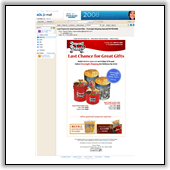
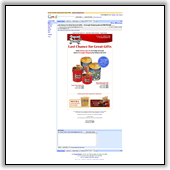
![]() AOL Mail | ![]() Gmail |
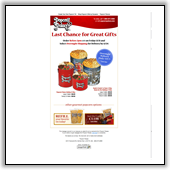
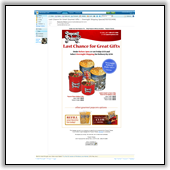
![]() Microsoft Outlook 2007 | ![]() Windows Mail |
![]() Hotmail | ![]() Yahoo! Mail |
![]() Mozilla Thunderbird | |
Click <A HREF="http://x.jngo1.net/w.z?***uniqueid****">here</a> to view this e-mail as a web page.
You can now have JangoMail automatically generate a Plain Text version of your e-mail message, based on your HTML version, at the time the email message is sent (run-time). To do this, set your Plain Text message to the word "auto-generate".
There has always been the "Set Plain Text Automatically" button underneath the Plain Text Message field on the Send Email page. This button examines your HTML message and generates a Plain Text Message for you right before your eyes. However, there may be situations where you don't want to generate the Plain Text message right away but rather have the Plain Text message generated at the time the email message is actually sent.
There are 3 scenarios where this feature will be advantageous.
Scenario 1 - Embedded URLs
If you are using Embedded URLs within your e-mail message, your HTML message might look like:
<html>
<p>
Hello there. Below you will find today's mutual fund prices:
</p>
[%%http://www.MutualFundCompany.com/Prices.aspx%%]
<p>
Thank you for investing in our mutual funds.
</p>
</html>
By setting the Plain Text Message field to "auto-generate", the following will take place at the time of e-mail sending:
In this scenario, if you do NOT set the Plain Text field to "auto-generate", but instead use the "Set Plain Text Automatically" button on the Send E-mail page, the following will take place:
Scenario 2 - Using the Web Service/API
When calling any of these methods:
SendMassEmail
SendMassEmailPrevious
SendMassEmailRaw
Setting the MessagePlain input parameter to "auto-generate" will allow JangoMail to generate a Plain Text version of your HTML e-mail for you automatically. The "Set Plain Text Automatically" button that is available in the JangoMail web interface is not available when using the API, so for any automatic conversion to take place, the MessagePlain input parameter must be set to "auto-generate". Otherwise, you would have to manually input a Plain Text version of your message.
Scenario 3 - Using Conditional Logic Statements
When using VBScript conditional logic statements in your e-mail message, the line spacing of plain text messages can be altered based on where you place your lines of code. These spacing issues can be avoided by setting the Plain Text field to "auto-generate" rather than placing actual conditional logic statements within the Plain Text field.
A copy of all mass e-mails sent from the account will be sent to the designated e-mail addresses. However, e-mail messages that are previews, autoresponders, triggers will NOT be sent to the designated e-mail addresses.